Manage privacy and your data
See what Polar keeps on your computer, what it sends to its servers, and how to delete tasks, browsing data, or your account.
This page explains where your data lives in Polar and how to delete it. For the full details, read the Privacy Policy.
What stays on my computer?
Cookies and site data stay on your computer and never sync, so you sign in to sites separately on each computer. When you import from another browser, the import happens on your computer too.
What syncs between my devices?
Bookmarks, history, and extensions sync to the same profile on your other computers and on Polar's Computer.
Saved passwords and cards sync to every device you sign in to, so Polar can fill them in there. The agent never sees a password. See Manage sign-ins and passwords and Use Polar on multiple devices.
What does Polar send to its servers?
To run a task, Polar sends what the task needs to its servers and to its AI model providers. That can include your prompt, screenshots, page context, files, and the conversation so far. Polar's agreements with its model providers include zero data retention and don't let them train on your data.
Polar also stores your tasks, projects, workflows, files, and memory, so you can pick them up on any device. To see or change what Polar remembers about you, see Manage memory and instructions.
Delete a task
- Right-click the task in the sidebar.
- Click Delete, then click Delete again to confirm.
The task disappears from all your devices. If it's still running, it stops, and any share links to it stop working.
To delete several at once, select them in the sidebar, right-click, and choose Delete N tasks….
Delete a project or workflow
- Project. Right-click the project in the sidebar and click Delete Project. This removes the project, its shared files, and its instructions. Tasks and workflows in it are kept and become ungrouped.
- Workflow. Right-click the workflow in the sidebar and click Delete. This removes the workflow and its triggers. To stop a workflow without losing it, click Archive instead.
You can't undo either one.
Clear your browsing data
- Mac: choose Polar → Clear Browsing Data…, or press ⇧⌘⌫.
- Windows: press Ctrl+Shift+Delete.
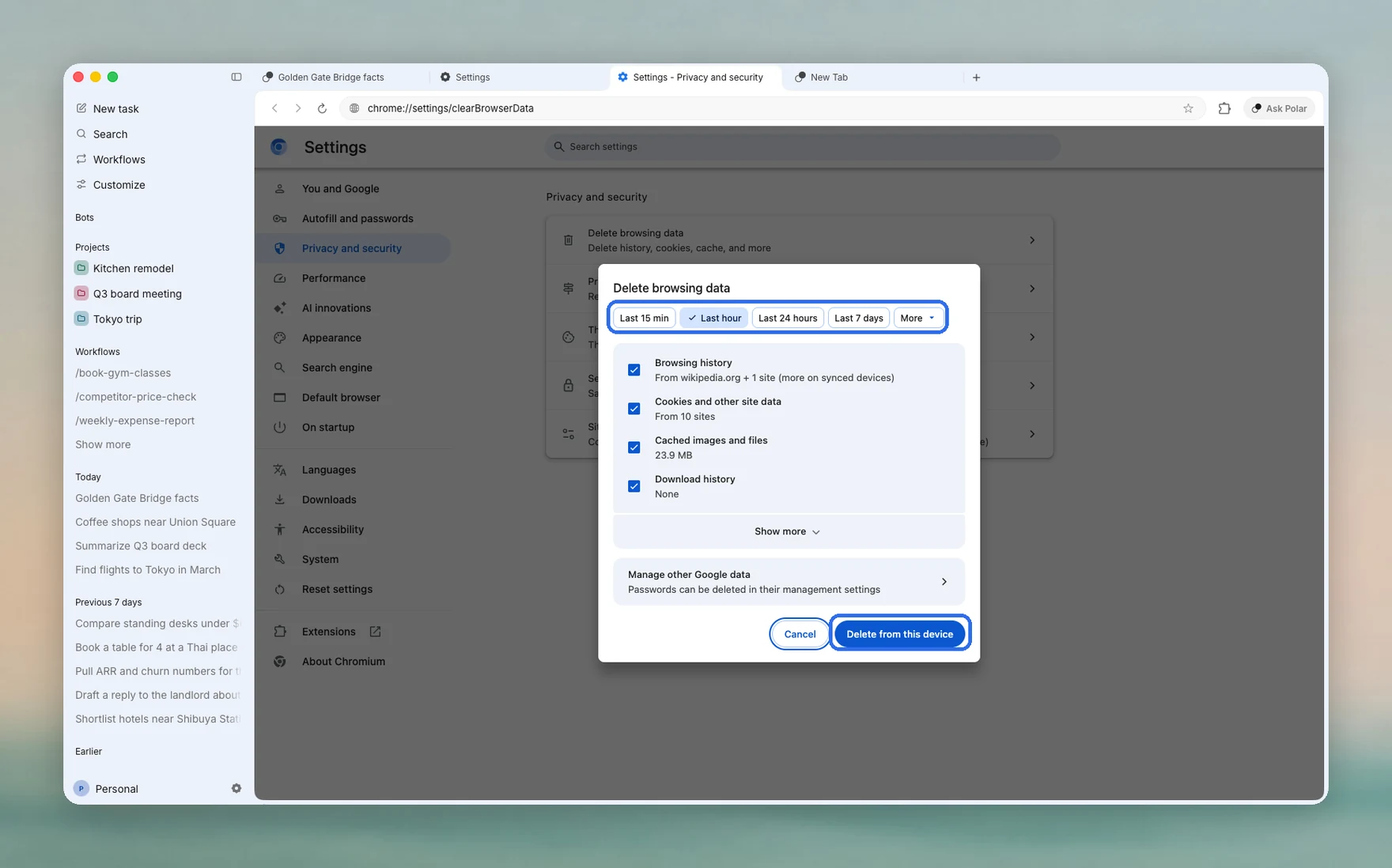
When you delete history, it's also deleted from the same profile on your other devices.
Disconnect an app
Open Settings → Connectors. Click Disable next to an app to stop Polar using it, or remove the connector to disconnect it. See Connect your apps.
Is Polar SOC 2 compliant?
Yes. Polar is SOC 2 Type II certified. You can request the report from trust.polarbrowser.com.
Delete your account
- Go to polarbrowser.com/dashboard and sign in.
- Open Settings and click Delete account.
- Email support@polarbrowser.com as the page asks, and the team will help with your request.