Use Polar as your browser
Make Polar your default browser, and use profiles, Chrome extensions, search, themes, and keyboard shortcuts.
Polar is a full web browser built on Chromium, so your sites, tabs, and Chrome extensions work the way you're used to. This page covers the everyday browser features.
Make Polar your default browser
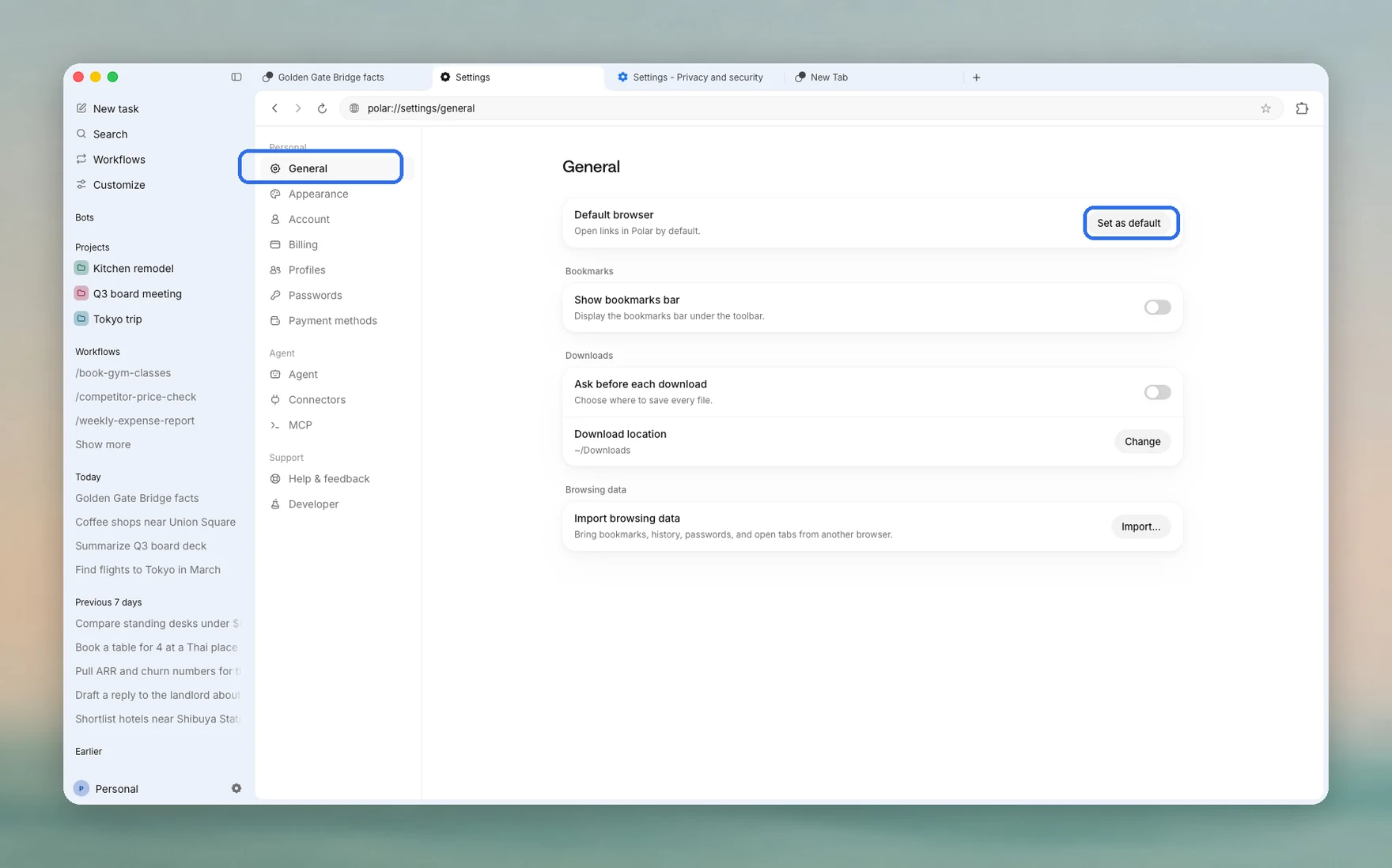
Open Settings → General and click Set as default next to Default browser. Links you open from other apps then open in Polar.
Keep work and personal separate with profiles
Each profile keeps its own sign-ins, history, extensions, and settings, and opens in its own window. A profile's window lists only that profile's tasks, projects, and workflows, and takes a light tint of the profile's color.
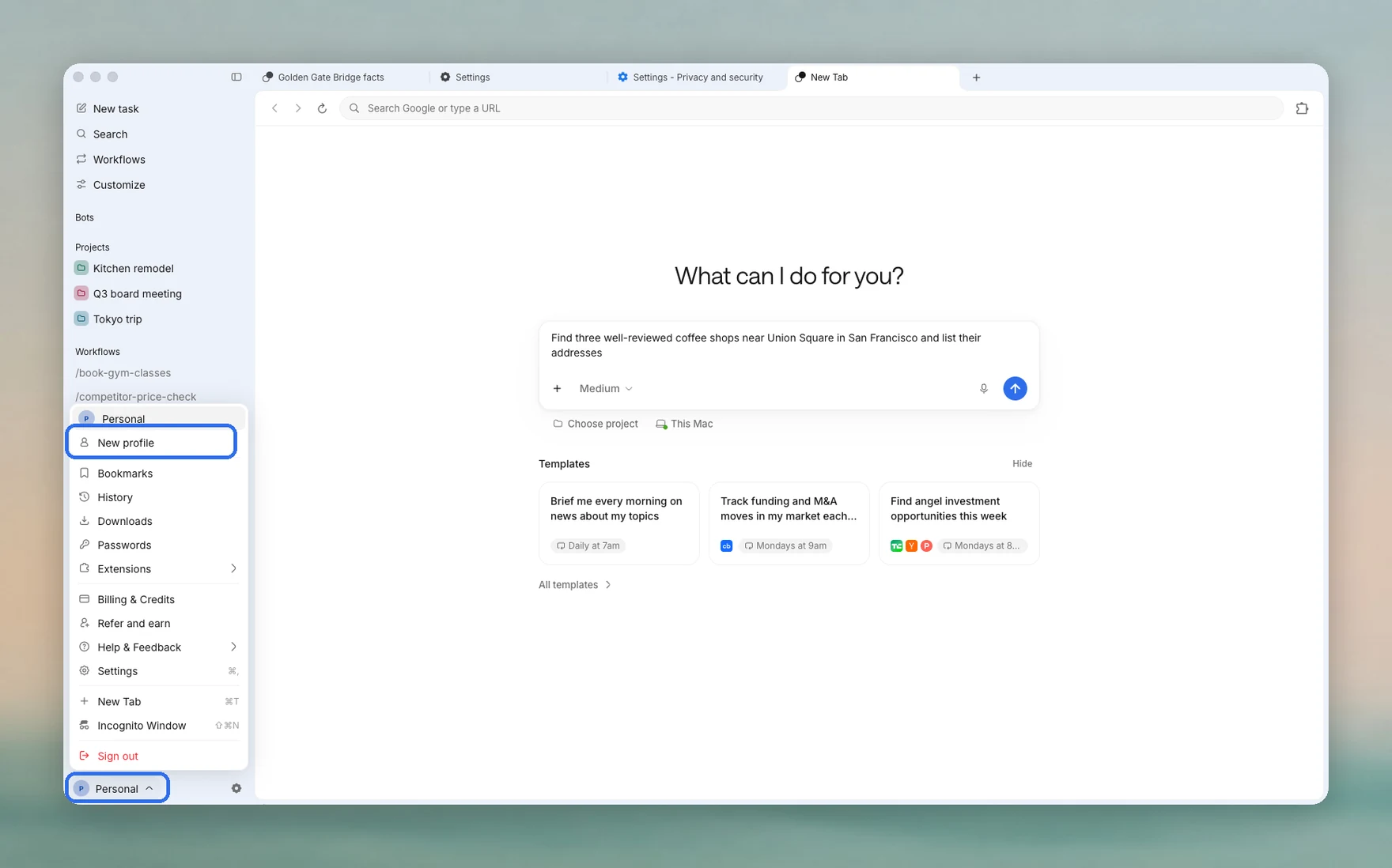
To add a profile, click your profile at the bottom of the sidebar and choose New profile. Give it a name and a color, then click Create. To switch, pick another profile from the same menu, and Polar opens its window.
To rename a profile or change its color, open Settings → Profiles, click ⋯ next to it, and choose Edit.
A profile's bookmarks, history, extensions, passwords, and workflows follow it to your other computers. See Use Polar on multiple devices.
Add Chrome extensions
Click your profile at the bottom of the sidebar and choose Extensions → Visit Chrome Web Store. Add extensions there as you would in Chrome.
Your extensions sit behind the puzzle-piece button in the toolbar, where you can pin the ones you use most. To turn extensions off or remove them, choose Extensions → Manage all extensions.
Find a task, tab, or workflow
Press ⌘⇧A on Mac or Ctrl+Shift+A on Windows, or click Search in the sidebar. You can search threads, open and recently closed tabs, workflows, skills, and projects, and filter by each.
Ask Polar about the page you're on
Click Ask Polar in the toolbar, or press ⌘K on Mac or Ctrl+K on Windows. See Use the Command panel.
Dictate instead of typing
Click Dictate (the microphone) in the message box and speak. Press Enter to put the text in the box, or Esc to cancel. On a Mac, if Polar can't use your microphone, allow it in System Settings → Privacy & Security → Microphone.
Change how Polar looks
Open Settings → Appearance.
| Setting | Options |
|---|---|
| Theme | System, Light, or Dark. Applies to every profile. |
| Chat text | Smaller, Small, Default, Large, or Larger. Set for each profile. |
Get your tabs back after quitting or a restart
Polar reopens your windows and tabs when you open it again, including after a crash. To reopen a tab you closed, press ⌘⇧T on Mac or Ctrl+Shift+T on Windows, or find it under recently closed tabs in Search.
Where are bookmarks, history, and downloads?
Click your profile at the bottom of the sidebar to find Bookmarks, History, and Downloads. In Settings → General, you can show the bookmarks bar, choose where downloads go, and have Polar ask before each download.
Keyboard shortcuts
Most Chrome shortcuts work in Polar. These are Polar's own:
| Action | Mac | Windows |
|---|---|---|
| Open the Command panel | ⌘K | Ctrl+K |
| Search | ⌘⇧A | Ctrl+Shift+A |
| Show or hide the sidebar | ⌘\ | Ctrl+\ |
| Next unread chat | ⌥⇧↓ | Alt+Shift+↓ |
| Previous unread chat | ⌥⇧↑ | Alt+Shift+↑ |
| Open Settings | ⌘, | Ctrl+, |
To change the Command panel or sidebar shortcut, open Settings → Agent → Keyboard shortcuts, click the shortcut, and press the new keys. Each profile keeps its own.