Get started
Install Polar on your Mac or Windows PC, sign in, bring over your browser data, and run your first task.
Polar is a web browser with an agent that does tasks for you on the sites you're signed in to. This page takes you from download to your first task.
What do I need to run Polar?
You need a Mac with macOS 14 Sonoma or later, or a PC with Windows 10 22H2 or later. Polar runs on Macs with Apple silicon and on Intel Macs. There's no Linux version.
The download page picks the right version for your computer. You can also choose Mac (Apple Silicon), Mac (Intel), or Windows yourself.
Install Polar on a Mac
- Download Polar from polarbrowser.com and open Polar.dmg.
- Double-click the Polar icon, then click Install.
- Polar installs itself in your Applications folder and opens.
Install Polar on Windows
- Download Polar from polarbrowser.com and run PolarSetup.exe.
- Click Install. You don't need an administrator password.
- Polar opens when setup finishes.
Sign in
Click Sign In on the Welcome to Polar screen. Polar opens your web browser so you can sign in there. When you're done, go back to Polar.
If you closed the sign-in tab by mistake, click Reopen sign-in.
Set up Polar
After you sign in, Polar walks you through a few steps:
-
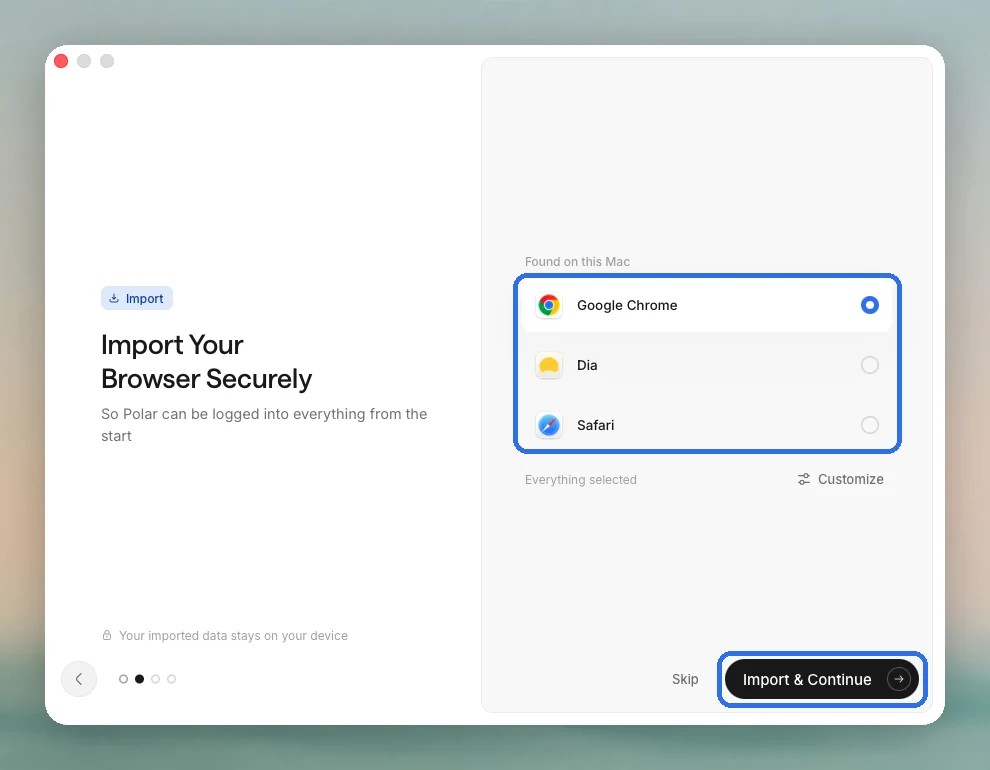
Import your browser. Polar lists the browsers it finds under Found on this Mac (or Found on this PC). Pick one and click Import & Continue. Click Customize to choose what comes over, or Skip to import later. See Import from another browser.
-
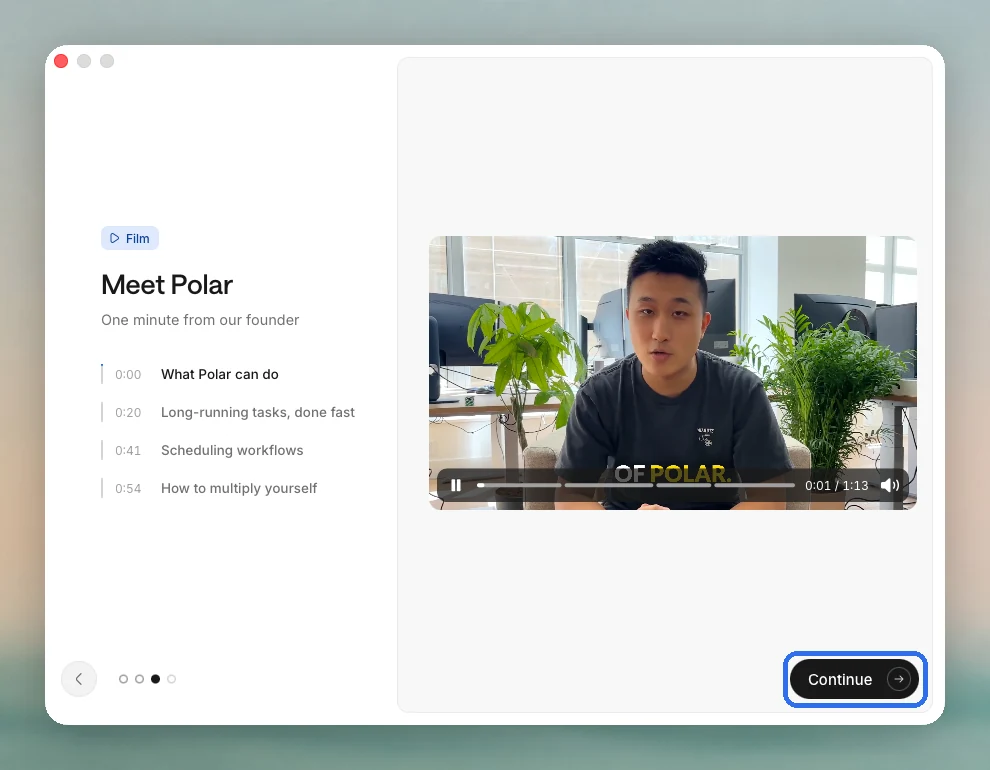
Meet Polar. A one-minute film from Polar's founder shows what Polar can do. Continue unlocks after a few seconds, or click Skip to move on right away.
-
Make Polar your default browser. Leave Set Polar as my default browser checked so links from other apps open in Polar. Then click Launch Polar.
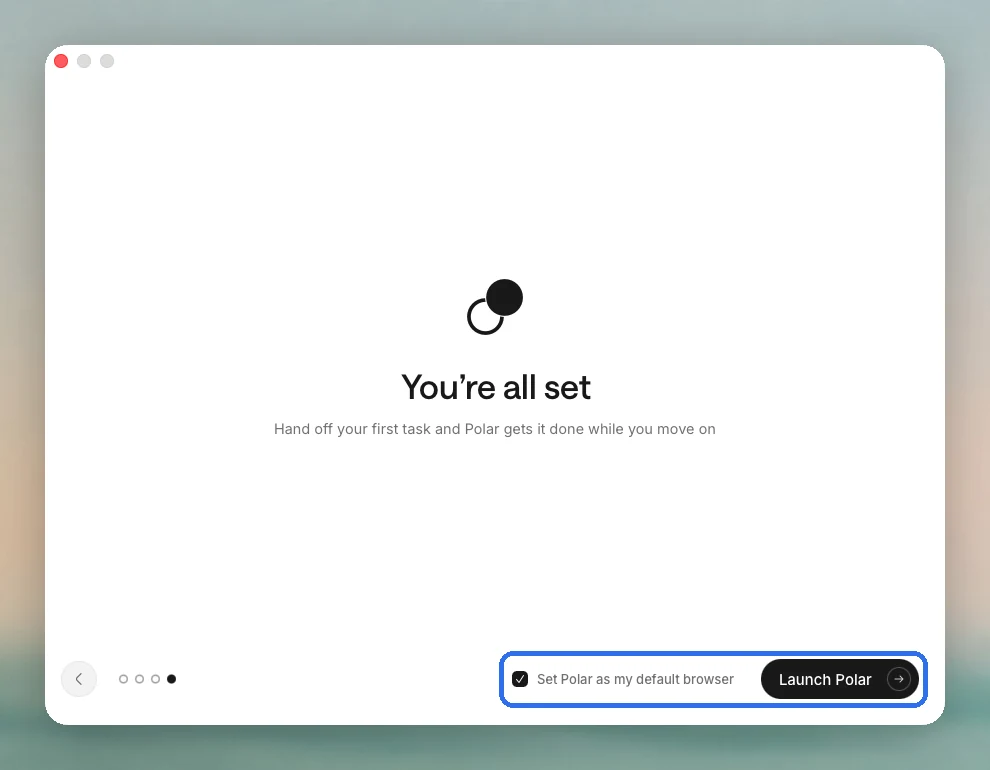
You can change your default browser later in Settings → General.
What if I quit during setup?
Polar picks up at the same step the next time you open it.
Run your first task
Click New task in the sidebar. Describe what you want done in the message box and press Enter. Polar works in a browser tab of its own, and you can follow along or keep browsing while it works.
The Get started list in the sidebar suggests what to try next: Run your first task, Ask Polar on any page, Connect an app, and Run a workflow.
How do I keep Polar up to date?
Polar keeps itself up to date. On a Mac, you can also check yourself: choose Polar → Check for Updates… in the menu bar.