Organize work with projects
Keep related tasks, workflows, files, and instructions together so every task in the project starts with the same context.
A project keeps tasks, workflows, files, and instructions in one place. Use one for ongoing work, like a job search or a client account, so you don't have to explain the same things in every task.
Create a project
In the sidebar, click + next to Projects. You can also open the project menu in the message box on New task and pick Create new project.
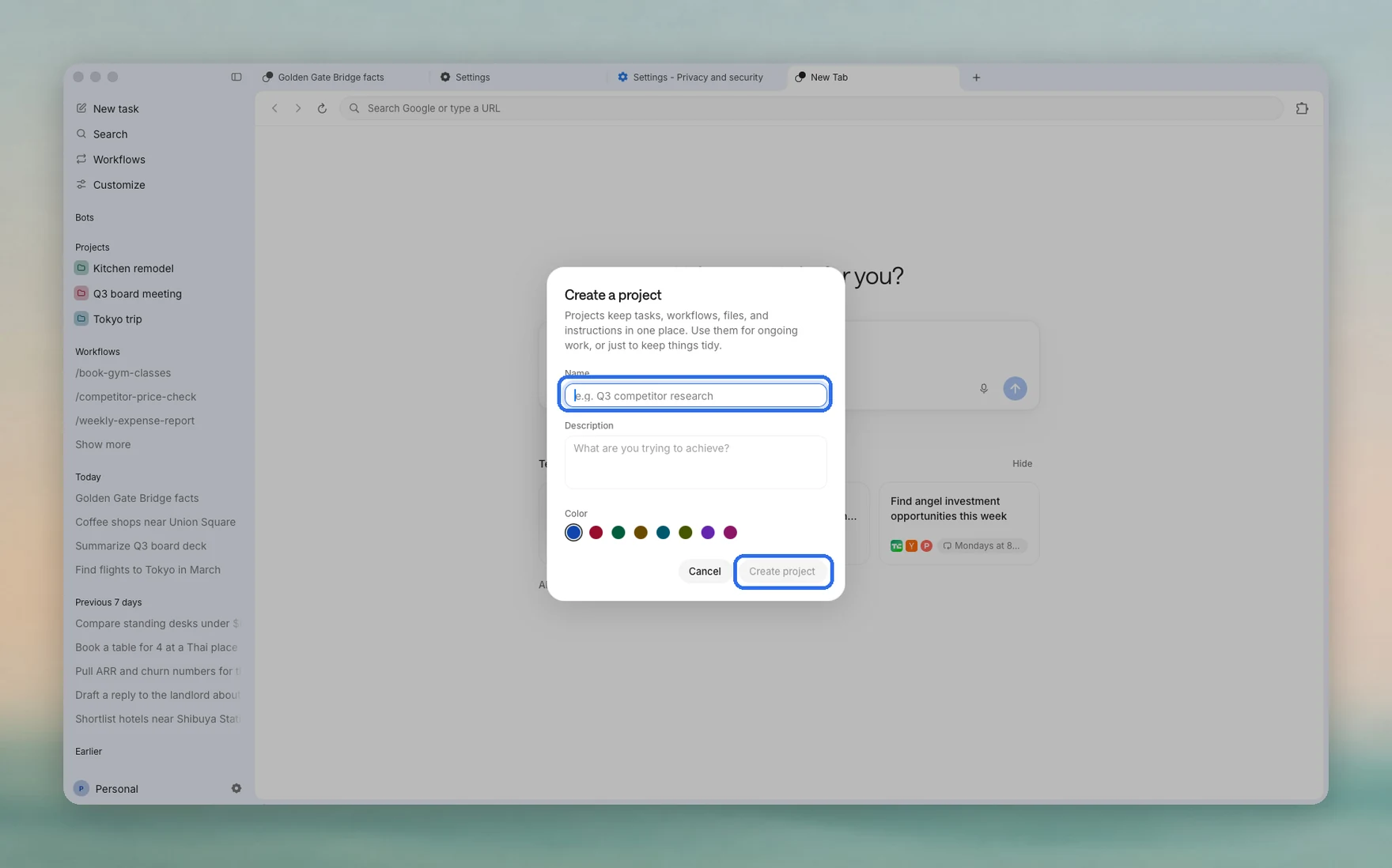
Give the project a name, and if you like a description and a color, then click Create project.
Add tasks to a project
To start a task in a project, open the project and type in its message box. Or, on New task, click Choose project in the message box and pick one.
To file a task you already have, right-click it in the sidebar and choose Add to Project. A task that's already in a project has Move to Project and Remove from Project instead.
Workflows work the same way. Right-click a workflow in the sidebar, or click + on the project's Workflows card to create one or add one you have.
Give Polar instructions for a project
On the project's page, click + on the Instructions card, or the pencil once it has some. Write what Polar should always do in this project, like "Ask before contacting anyone," and click Save instructions.
Polar follows them in every task in the project, along with your own instructions.
Add files to a project
Click the Context Files card to open the project's shared files. Click +, then Upload to add PDFs, documents, or other files, or New folder to sort them. Open a file's menu to rename or delete it.
Every task in the project can read these files. Polar can also save files here, so what one task makes is there for the next. Files a task saves anywhere else stay with that task only.
What is project memory?
It's a short summary Polar keeps as it works on the project: decisions, progress, and facts worth remembering. Polar reads it at the start of every task in the project.
The Memory card on the project's page shows it after a few tasks. It's marked Only you, so only you can see it.
The card is read-only. The summary lives in a file called MEMORY.md in the project's files. To change or clear it, open Context Files and edit or delete that file.
Move a project to another profile
Each profile's window lists only its own projects. To move one, right-click it in the sidebar, choose Move to Profile, and pick the profile. Its tasks and workflows move with it.
You can't move a project while one of its tasks is running.
Edit or delete a project
On the project's page, click ⋯ and choose Edit details to change its name, description, or color.
Choose Delete project to remove it. This deletes the project's files, instructions, and memory. Its tasks and workflows stay, outside any project. You can't undo it.