Use Polar with your team
Create a team, invite people, give each member a seat, and share credits and skills on one bill.
A Polar team puts everyone on one bill, with their own seat and credits, and lets you share skills. Use this page to set up and run a team. For seat prices, see Pricing.
How do team seats and credits work?
Each member holds a seat, and each seat comes with its own monthly credits. There are two kinds: Standard and Premium. You can mix them, so your heaviest users get Premium and everyone else stays on Standard.
When a member's seat credits run out, they use the team's top-ups, which every member shares. Owners and admins buy top-ups and turn on auto-reload in Settings → Billing. See Manage plans and credits.
Create a team
- In Polar, open Settings → Billing.
- Next to Create a team, click Create.
- Enter a Team name and pick your own seat.
- Click Review & pay, then Continue to checkout, and pay on the page that opens.
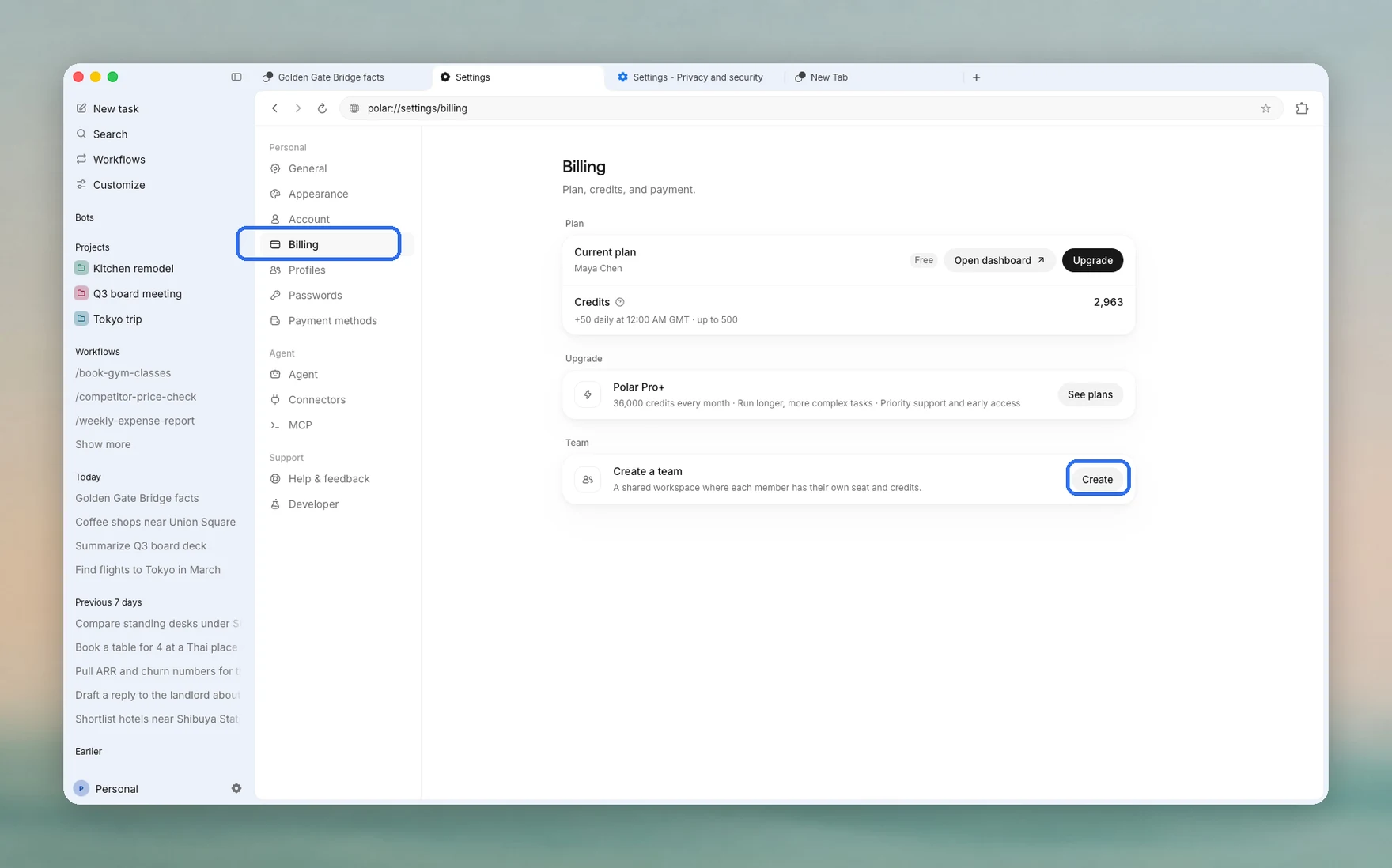
The team is created once payment goes through, and Polar switches you to the team workspace. You're its owner.
Invite members
Owners and admins manage the team in the web dashboard at polarbrowser.com/dashboard.
- Open the dashboard and go to Members. From Polar, you can also click Manage seats in Settings → Billing.
- Under Invite members, enter one or more email addresses.
- Pick the seat each invitee gets, or No seat.
- Click Send invites.
Each invitee's seat is charged to the team's card when they join, prorated to the rest of the billing period. Invites expire after 14 days. Under Pending invites, each invite's menu has Copy link and Delete invite.
Join a team
Open the invite link, sign in with the email address it was sent to, and click Accept invite. If joining changes something, like ending your personal plan, Polar lists it first, and you click Join to confirm. You join as a member.
What can owners and admins do?
Owners and admins invite and remove members, change seats and billing, rename the team, and see everyone's usage. Only owners can make someone an owner or remove an owner.
Members see only their own usage and can't change billing.
Manage members and seats
In Members, use the menus on each row to change a member's role (Owner, Admin, or Member) and seat. A team always keeps at least one owner. Polar shows what a seat change costs before you confirm it.
To remove someone, open the menu on their row and click Remove member. They go back to their personal account and lose access to the team's skills.
Share a skill with your team
To save a new skill to the team, pick your team's name under Save to instead of Your skills. To move a skill you already have, open its ⋯ menu, choose Move to and your team's name, then click Move. You can also ask Polar in a chat to move one, then confirm from its card.
Everyone on the team can run, edit, share, and delete a team skill. Polar's notes on it are shared with the team too.
Moving a skill can't be undone. Your workflows on it keep running, and anyone you'd shared it with keeps access. Your notes on it are deleted.
If you have your own skill with the same command as a team skill, Polar uses yours. See Create and share skills.
Build workflows on team skills
On a team skill's page, click Create a workflow. The workflow is yours: teammates don't see its triggers or runs, and its runs use your credits. Teammates can make their own workflows on the same skill.
Because the skill is shared, a teammate's edit changes what your workflow does. If someone deletes the skill, every workflow on it is removed. See Automate with workflows.
Can my teammates see my tasks?
No. Your tasks, projects, workflows, and run history stay your own. Admins see how many runs and credits you used, not the tasks themselves.
Why can't I run tasks on my team?
You need a seat. If Settings → Billing says you need a seat, ask a team admin to give you one, or leave the team to use your personal account.
Switch between team and personal billing
You bill on one account at a time. Creating or joining a team moves your billing to it. If you pay for a personal plan, that plan ends, and the unused part of the billing period is refunded to your card. Leaving the team moves you back to your personal account.
If Settings → Billing lists two accounts under Billing account, click Switch to choose which one new tasks use.
Leave or delete a team
To leave, open the dashboard's Settings, click Leave team, read what changes, and click it again.
- New tasks bill to your personal account.
- You lose access to the team's skills, and your workflows on them are removed.
- If you're the only owner and others are still on the team, make someone else an owner first.
- If you're the last member, the team closes and its skills are deleted.
To delete a team, click Delete team in the same place. It asks you to email support@polarbrowser.com.
Does Polar support SSO or SCIM?
Yes, on Enterprise. SSO, SCIM, and audit logs are available if you ask. Email hello@polarbrowser.com.