Work with files
Attach files to a task, open and download the files Polar makes, and keep files for later tasks.
Polar can read files you give it and make files for you, like spreadsheets, reports, and web pages.
Attach files to a task
Drag files into the message box, or click + and choose Add files or photos. On New task, you can drop files anywhere on the page. Attached files show as cards above your message.
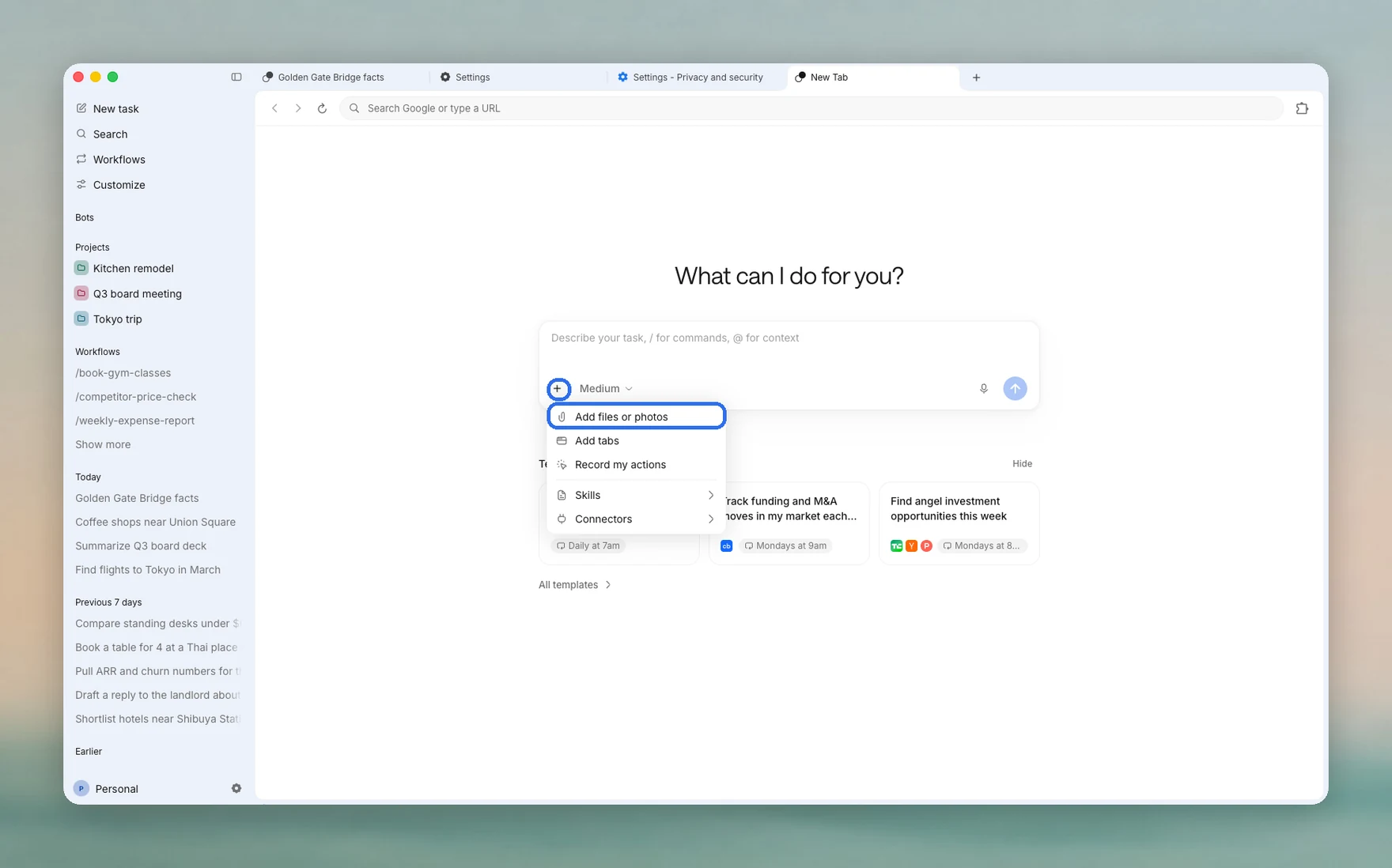
You can attach up to 1 GB per message.
To let Polar find files on your computer by itself, and save what it makes to your Downloads folder, connect File Access. See Connect your apps.
Open a file Polar made
When Polar finishes a file, it shows a card in the chat with the file's name and type. Click Open to preview it. The preview shows documents, spreadsheets, PDFs, images, web pages, and videos.
In the preview you can:
- Click the download button to save the file. For a web page, choose Download as PDF or Download as HTML.
- Click the copy button to copy the text of a document, table, or text file.
- Click Share to make a public link to the file. See Share tasks and files.
Where do downloads go?
Files you download go to the folder in Settings → General, under Downloads. Click Change next to Download location to pick another folder. To choose a folder each time, turn on Ask before each download.
Keep files for later tasks
Files Polar makes in a task belong to that task. To keep files that many tasks can use, put them in a project. Every task in the project can read the project's files, and Polar can save new ones there.