Use Polar from other AI apps
Connect Claude Code, ChatGPT, Cursor, and other AI apps to Polar over MCP so they can give it tasks on the sites you're signed in to.
Polar MCP lets the AI apps you already use hand tasks to Polar. Polar does the task in your browser, on the sites you're signed in to and in your connected apps, then sends back what it found. For ideas on what to use it for, see Polar MCP.
Connect an app
- Open Settings → MCP. Press ⌘, on Mac or Ctrl+, on Windows to open Settings.
- Under Connect an app, click Connect next to your app.
- Follow the steps for that app. They show the exact command or address to copy.
- Press Allow on the Polar page that opens.
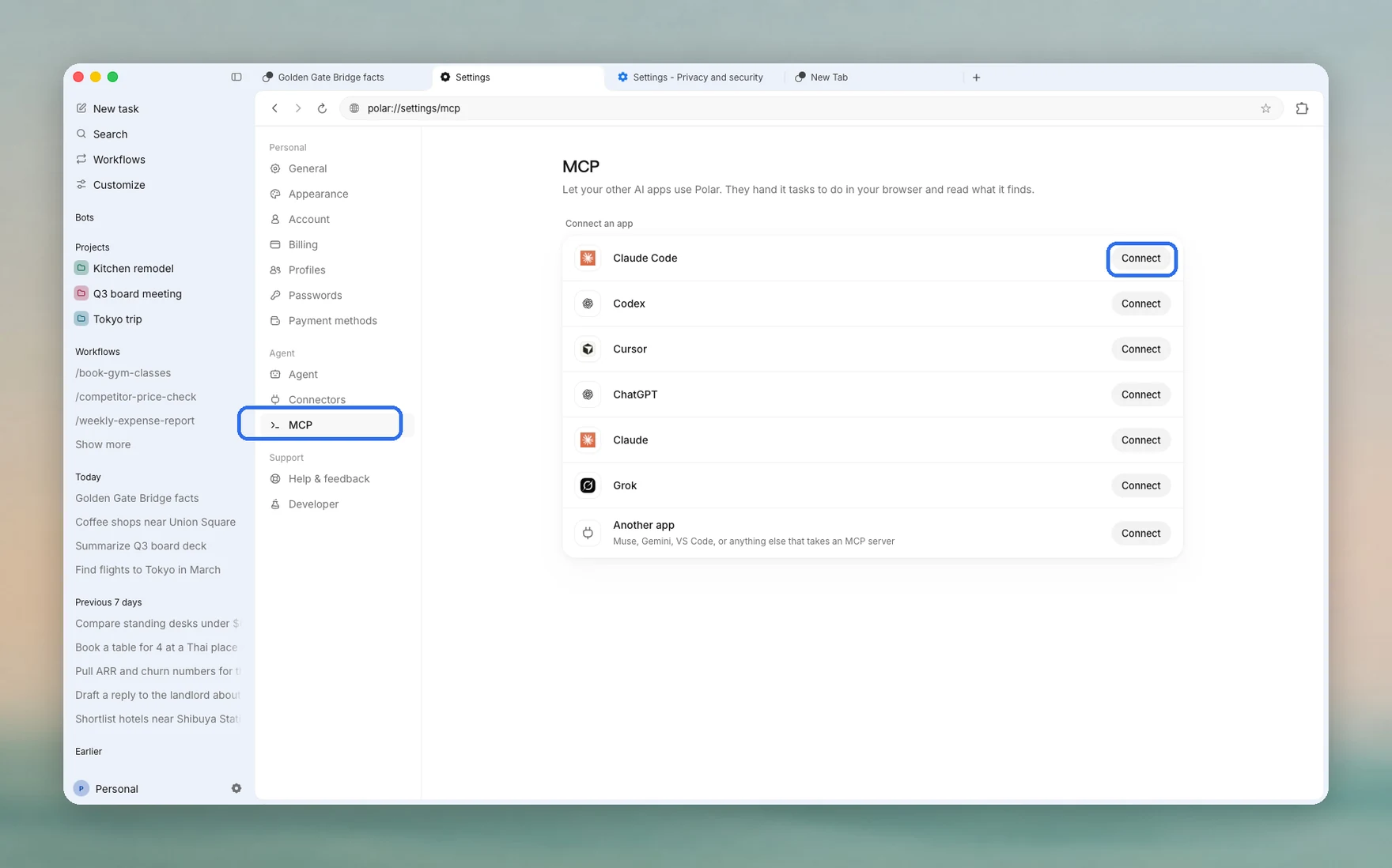
When you're done, the app shows under Connected. You don't copy any key or password: the app signs in through Polar.
| App | What you do |
|---|---|
| Claude Code | Run a command in your terminal, then type /mcp in Claude Code and choose polar |
| Codex | Run a command in your terminal |
| Cursor | Add an entry to ~/.cursor/mcp.json |
| ChatGPT, Claude, Grok | Add a custom connector in the app's settings with Polar's address |
| Another app | Add an MCP server, or custom connector, with Polar's address. This works for any app that takes an MCP server, like Gemini or VS Code. |
What can a connected app do?
A connected app can:
- Start a task, with files attached if needed
- Send a message to its task: a follow-up, a correction while it works, or an answer to Polar's question
- Check how a task is going and read Polar's reply
- Stop a task
- List the tasks it started
- Upload files for a task, and download files a task made
It can also pick the project, browser profile, computer, or effort level for a task. Polar tells connected apps to do that only when you ask. An app sees only the tasks it started. Polar's agent sees only what the app sends it, never the rest of your conversation in that app.
Where do tasks from my AI app show up?
In Polar, like any other task. Open one to watch it work or to step in. They use your credits, the same as tasks you start yourself. See Manage plans and credits.
Does Polar need to be open?
Yes, on at least one of your computers. A task runs on the computer the app connected from, or the one you used last, and only where Polar is open. It never runs on Polar's Computer unless you ask for it, so ask your AI app to use Polar's Computer when you want that. If the computer goes offline mid-task, the task waits and picks up when Polar is open there again.
What happens when Polar needs me?
Polar pauses and asks you in Polar, like for a sign-in. If Polar asks a question, your AI app can answer it for you.
Does my AI app see my passwords?
No. The app gets each task's status, Polar's replies and questions, and the files the task made. Its connection works only for these task tools, not the rest of your Polar account. When a site needs a saved password, Polar's browser fills it in. Not even Polar's agent sees the password.
Disconnect an app
In Settings → MCP, click Disconnect next to the app under Connected. It can no longer give Polar tasks or read their results. Tasks it already started stay in Polar.
Start Polar from your own code
To start a run from a script or another service, give a workflow a webhook trigger and call its URL. See Automate with workflows.