Share tasks and files
Share a task or a file with a public link, and see what people with the link can see.
When you want someone else to see what Polar did, you can share a task or a file with a link.
Share a task
Open the task, click Share, then click Create public link. Click the copy button next to the link to copy it.
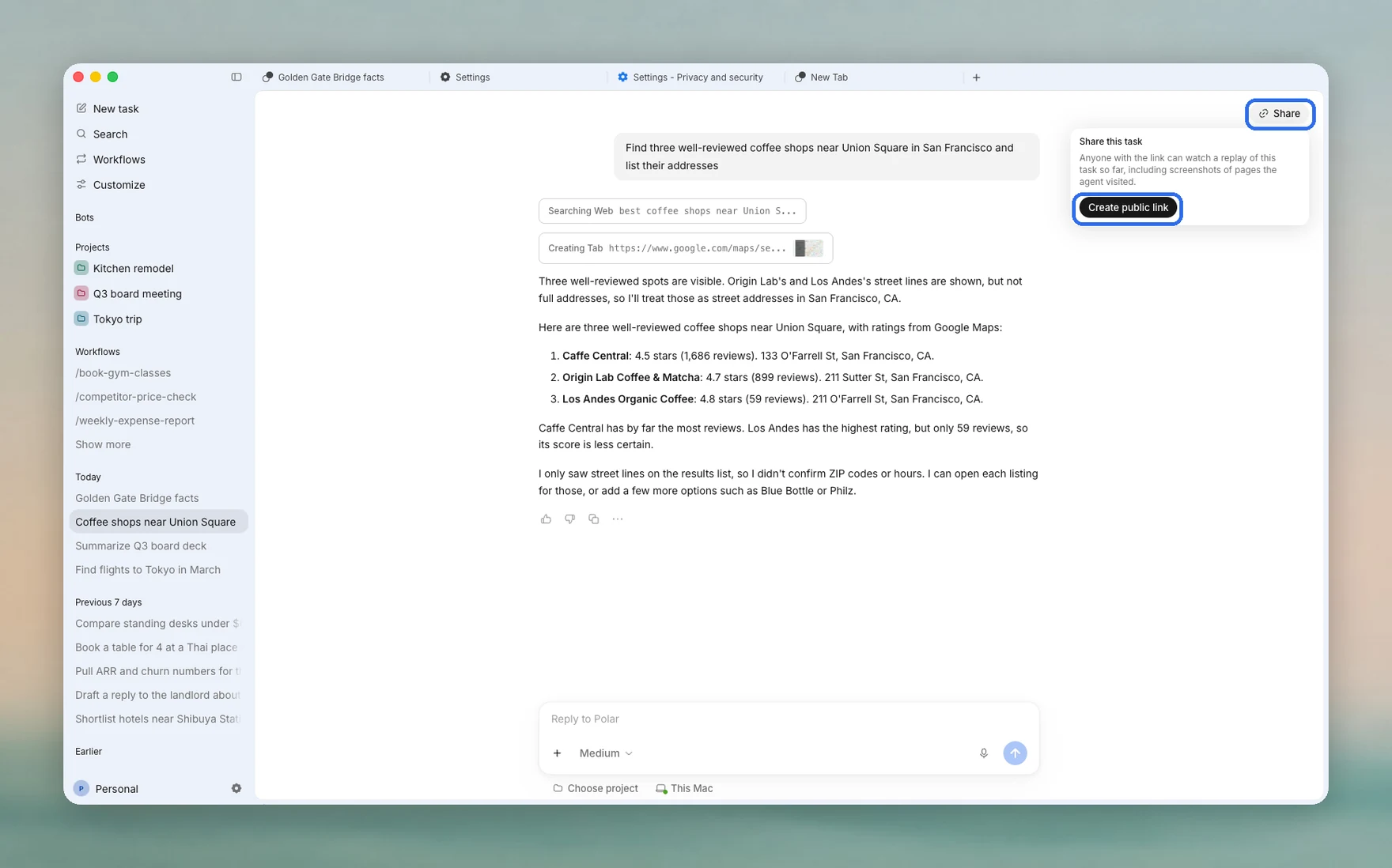
What does a shared task show?
Anyone with the link can watch a replay of the task, without signing in. The replay includes:
- Your messages and Polar's replies
- Each step Polar took, with screenshots of the pages it visited
- The address and title of each page
- Polar's to-do list as it worked
Screenshots show whatever was on the page, like your inbox, account details, or other people's information. Look through the task before you share it.
The replay stops at the moment you created the link. Anything that happens in the task after that isn't included. To turn the link off, delete the task.
Share a file
Open the file and click Share in the preview. Polar makes a link and copies it for you.
You can also ask Polar to share a file it made, and it puts the link in its reply.
What does a shared file show?
Anyone with the link can view and download the file, without signing in.
- The link shows the file as it was when you shared it. Later edits don't change it. Share the file again to get a link to the new version.
- A web page or Markdown file inside a folder is shared with the rest of that folder, so links between the files still work.
- Only share files you're fine with anyone seeing.