Use Polar on multiple devices
Use Polar on more than one computer, choose where each task runs, and keep your profiles and passwords in sync.
You can use Polar on several Macs and PCs with the same account. Your profiles, tasks, and saved passwords follow you, and each task runs on the computer you choose.
Add another computer
Install Polar on the other computer and sign in with the same account. See Get started. Polar sets up your primary profile there, with its tasks and workflows.
What syncs between computers?
A profile on your account shares these with every computer it's on:
- Its name and color
- Bookmarks, history, and extensions
- Saved passwords and cards
- Workflows
- Tasks, listed in the profile's window
Site sign-ins don't sync: each computer keeps its own cookies. When a profile is new on a computer, you may need to sign in to sites again there. Importing from your other browser is a quick way to do that. See Manage privacy and your data.
Bring a profile to this computer
Click your profile at the bottom of the sidebar and choose New profile. Under From another device, pick the profile, then click Add.
See and rename your computers
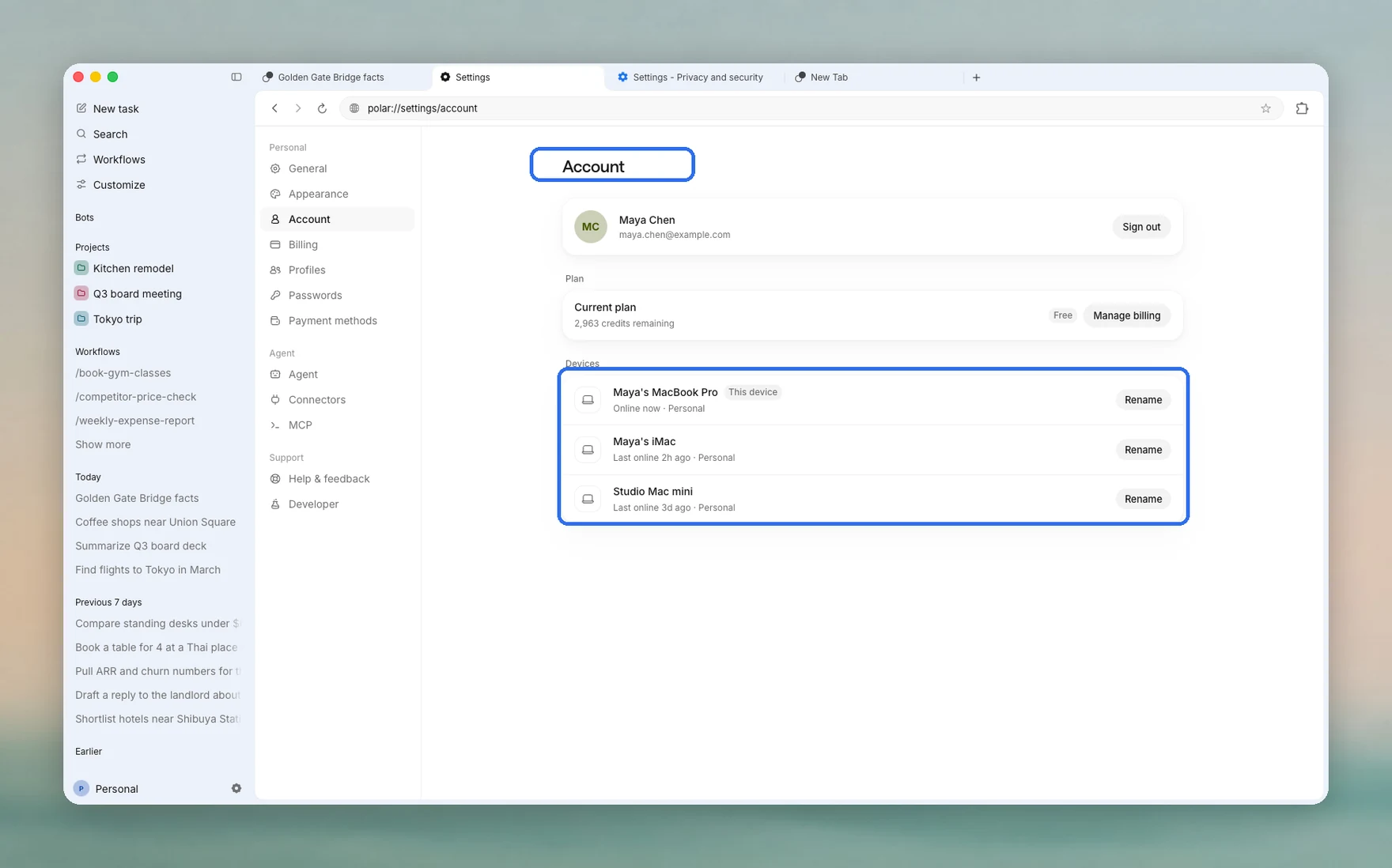
Open Settings → Account. Under Devices, Polar lists each computer signed in to your account, plus Polar's Computer. Each shows whether it's online, when it was last online, and which profiles it has.
Click Rename to change a computer's name. Leave the name empty to use the computer's own name.
Choose where a task runs
Under the message box, a button shows where the task will run, like This Mac. Click it to pick another computer that's online, or Polar's Computer, which is always online. See Run tasks on Polar's Computer.
Keep a laptop open, or a desktop on, while a task runs on it. A task stays on its computer, so your follow-ups run there too.
Move a task to another computer
In the task's chat, click the button under the message box and pick a computer under Other computers. You can't move a task while Polar is working on it.
If that computer doesn't have the task's profile, Polar offers to add it. The profile starts fresh there, so you may need to sign in to sites again.
What happens when a computer is offline?
The task waits. The chat shows Waiting for and the computer's name, and the task picks back up when Polar is open there. To keep going now, click the Move to button to move it to a computer that's online, or click Stop.
Get notified when a task finishes
Polar sends a notification when a task finishes or fails. To turn these off, open Settings → Agent and turn off Agent completion under Notifications. The setting applies to the profile you're in on that computer. Polar still notifies you when a task needs you.
When you open a task on one computer, its notification clears on your others.
Change your primary profile
Your primary profile is the one Polar sets up on each new computer you sign in to. To change it, open Settings → Profiles, click ⋯ next to a profile, and choose Make primary.
Remove a profile from one computer
In Settings → Profiles, click ⋯ next to the profile and choose Remove from this device. This deletes the profile and its browsing data from this computer only. It stays on your other computers.