Automate with workflows
Save a task as a workflow so Polar runs it on a schedule, from a webhook, or when something happens in your apps.
A workflow is a task you save once and Polar runs again for you. Use one for work that repeats, like a morning inbox summary or a weekly report.
Create a workflow
Open Workflows in the sidebar, click New workflow, and pick one:
- Chat with Polar: Polar asks what the workflow should do, how it should start, and where the results should go. Then it saves the workflow for you.
- Set up manually: fill in a Command, a Description, and Instructions for Polar, add any triggers, and click Save workflow.
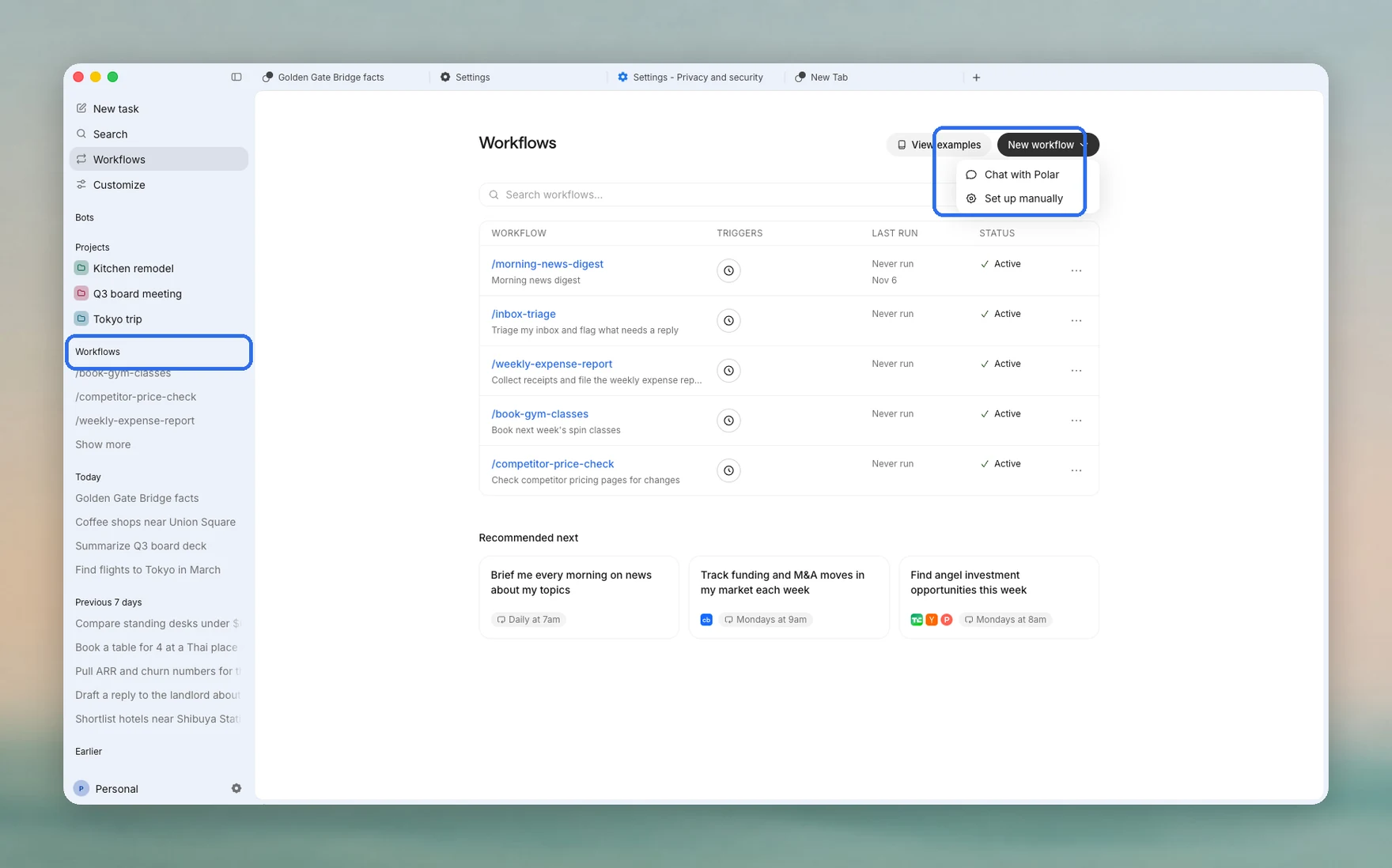
To run a workflow any time, click Run now on its page, or type / and its command in a chat. You can also ask Polar in any chat to set up a workflow or add a trigger.
Start from a template
On the Workflows page, click View examples to open Templates. Turn on Scheduled or Event-driven to see templates that run on their own. Open one and click Save as workflow.
Add a trigger
A trigger decides when a workflow runs. Without one, it runs only when you start it. On the workflow's page, click Add trigger and choose under App:
| Choice | When it runs |
|---|---|
| Schedule | Every day, Every weekday, Every week, Every hour, Once, or Custom (cron), in the time zone you pick |
| An app, like Gmail or Slack | When something happens there, like a new email or message. Pick the Trigger event and the Account to watch. |
| Create a webhook | When another app, an AI agent, or your own code calls its URL |
A workflow can have several triggers. If the app isn't connected yet, click Connect in the Account field.
Call a webhook
When you create a webhook, Polar shows its Webhook URL and Secret. Copy the secret then. You can see it again with Show secret in the webhook's details, and replace it with Rotate secret from the webhook's ⋯ menu.
Send a POST request with the secret as a bearer token:
curl -X POST <webhook URL> \
  -H "Authorization: Bearer <secret>" \
  -H "Content-Type: application/json" \
  -d '{"input": "optional text for the run"}'
All fields are optional:
inputis added to the run's message.thread_idsendsinputinto a task an earlier call started, using thethread_idthat call returned. It works even while the task runs.- An
Idempotency-Keyheader makes repeat calls with the same key run only once.
Pause, archive, or delete a workflow
Each trigger has its own switch, so you can pause one and keep the rest. To pause them all, pick Pause triggers from the workflow's ⋯ menu. Pick Resume triggers to turn them back on.
Archive stops a workflow without losing it. It keeps its triggers, settings, and run history. To find it again, pick Archived in the filter on the Workflows page, then click Unarchive.
Delete removes the workflow and its triggers. You can't undo it.
See past runs
Each run is a task. The workflow's page lists them under Recent runs, and you can click one to open it.
What are a workflow's memories?
Memories are notes Polar keeps for a workflow between runs, like corrections you gave it or where to find something. Click Memories on the workflow's page to read them. To start fresh, click the trash icon next to it. Clearing keeps the instructions and files.
Does my computer need to be on?
Only if the workflow runs on your computer. Check Runs on in the workflow's settings:
- This Mac or This PC: runs while your computer is awake and Polar is open. If a trigger fires while it's asleep, the run starts when it wakes.
- Polar's Computer: runs even when your computer is closed. Polar's Computer has its own sign-ins, so you may need to sign in to some sites there first.