Create and share skills
Teach Polar how you like a job done, run it with a slash command, and share it with your team or anyone with the link.
A skill is know-how Polar keeps for one kind of task: instructions, plus any files they need. Polar uses a skill by itself when it fits the task, and you can run one any time with its command.
Create a skill
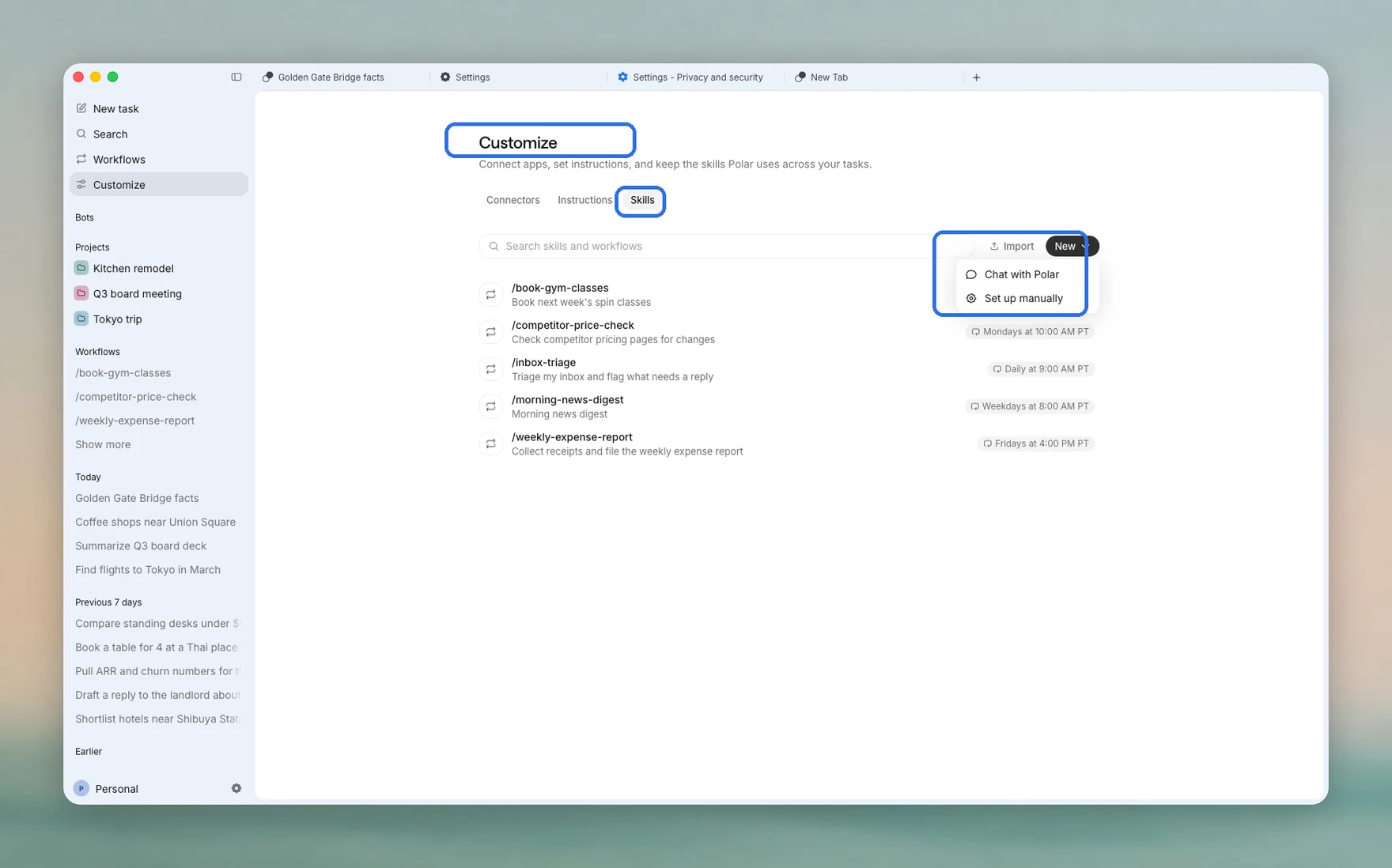
Open Customize in the sidebar and click the Skills tab. Click New and pick one:
- Chat with Polar: Polar asks you three quick questions, then writes and saves the skill for you.
- Set up manually: fill in a Command (a short name like
gmail-triage), a Description that says when Polar should use it, and the Instructions Polar should follow. Click Save.
You can also ask Polar in any chat to save what it just did as a skill. It shows a card with a link to the new skill.
To start from a template, open the Skills tab in Templates, pick one, and click Add to my skills. Change anything you like, then click Add skill.
Run a skill
Type / in the message box and pick a skill from the list. Add anything else Polar should know, then send. You can also click + and choose Skills.
You don't have to name a skill for Polar to use it. When a task matches a skill's description, Polar reads the skill and follows it.
Edit or delete a skill
Open the skill from Customize → Skills. Click Edit to change its command, description, or instructions. Click the Files card to see its instructions file and any other files it uses. To remove the skill, click the trash icon, then Delete.
Import skills from other apps
On the Skills tab, click Import. Polar looks on your computer for skills you have in apps like Claude Cowork and Codex, and lists them. Check the ones you want and click the import button.
To import a skill someone sent you as a file, drag a .zip that contains a SKILL.md file into the dialog, or click to choose one. If a skill has the same name as one of yours, pick Keep both or Replace.
Turn a skill into a workflow
A workflow is a skill that runs on its own: on a schedule, from a webhook, or when something happens in your apps. On the skill's page, click Create a workflow. See Automate with workflows.
Share a skill with a link
On the skill's page, click Share and choose who can open the link:
| Option | Who can open it |
|---|---|
| Only you | Just you. Pick this to turn the link off. |
| Anyone on your team | Everyone on your Polar team |
| Anyone with the link | Anyone signed in to Polar who has the link |
Click Copy link and send it. The other person opens it in Polar and clicks Add skill to put a copy in their own skills.
For a team skill, the choices are your team or Anyone with the link.
Who can see a shared skill?
Anyone who opens the link sees the skill's name and who shared it, even if the link isn't open to them. Only the people you chose see its description, instructions, and files.
A copy includes the instructions and files. It doesn't include the notes Polar has kept while running the skill.
Share a skill with your team
If you're on a team, you can save a new skill straight to it: under Save to, pick your team's name instead of Your skills. To move a skill you already have, open its ⋯ menu, choose Move to and your team's name, then click Move.
Everyone on the team can run, edit, share, and delete a team skill, and Polar's notes on it are shared with the team. Moving a skill can't be undone. Your workflows on it keep running, and your notes on it are deleted.
If you have your own skill with the same command as a team skill, Polar uses yours. See Use Polar with your team.