Manage plans and credits
Learn how credits work, what uses more of them, and how to top up, change, or cancel your Polar plan.
Every task Polar does uses credits. This page covers how credits work, how to get more, and how to change or cancel your plan. For plan prices and credit amounts, see Pricing.
How do credits work?
A credit is a unit of agent work. A quick task uses a handful, and a task that runs for hours uses a lot more.
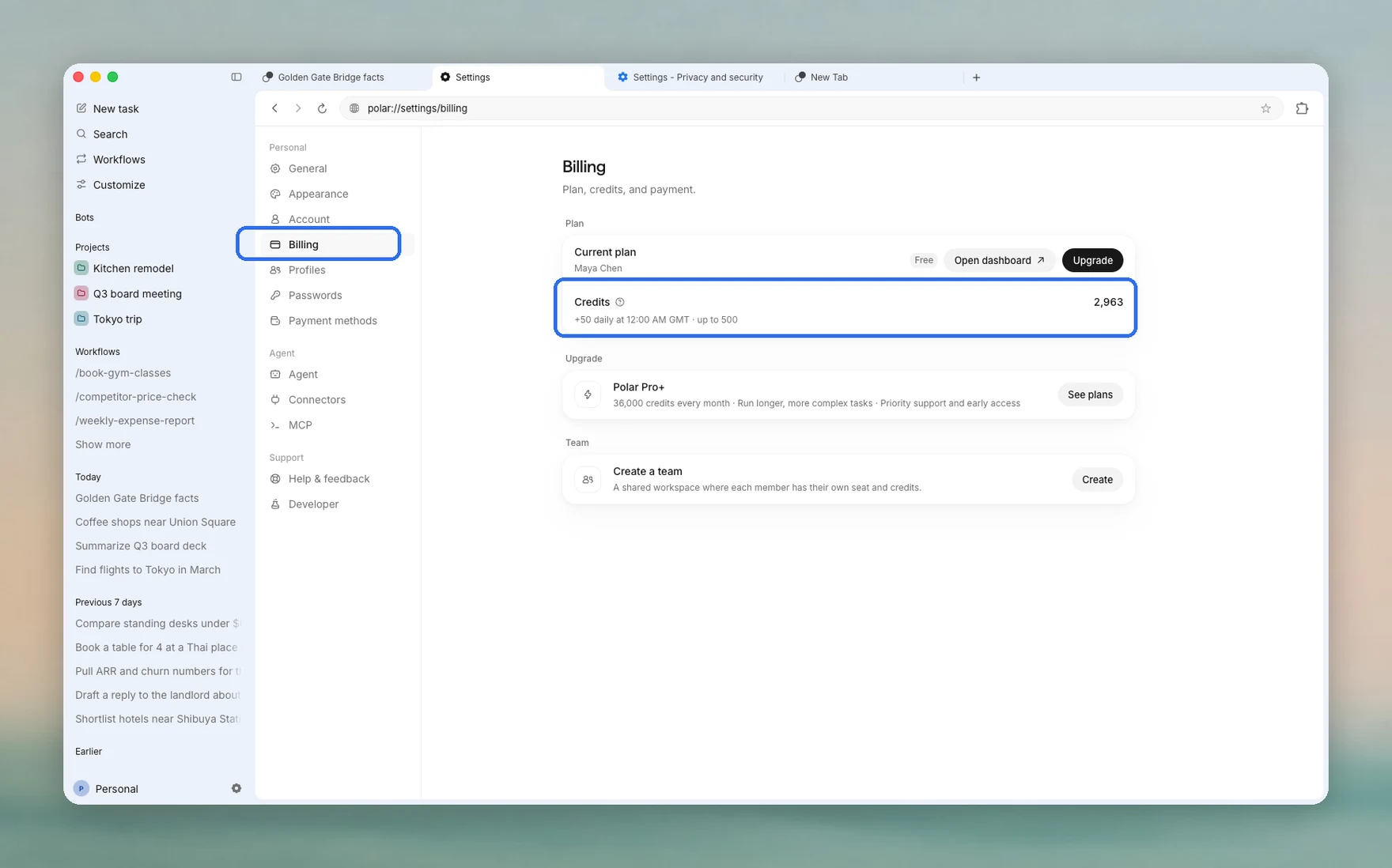
To see your balance and when your credits next reset, open Settings → Billing. To see what one task used, click Task details under any of Polar's replies.
What makes a task use more credits?
Running longer, and a higher effort level.
- Effort. The effort menu next to the message box has Low, Medium, High, and Extra High. Medium is the default. Low uses fewer credits than Medium, and High and Extra High use more. The menu shows how much more.
- Workflows. A workflow uses credits every time it runs. Each workflow has its own Effort setting.
To make your credits go further, use Low for simple tasks, start a new task for each new topic, and archive workflows you no longer need.
What do I get on the Free plan?
You get credits when you sign up, and you don't need a card. After that, Polar adds a few credits each day until you reach a cap. Settings → Billing shows when the next refill comes.
Do unused credits roll over?
Your plan's credits don't. They reset every month, and that includes annual plans, which still get their credits monthly.
Other credits work differently:
| Credits | When they expire |
|---|---|
| Top-ups | Never |
| Free credits from signing up | Never, while you're on the Free plan. A paid plan's credits replace them. |
| Referral credits | 90 days after you earn them |
| Get started rewards | 90 days after you earn them |
Polar spends the credits that expire soonest first, so top-ups are used after your plan's credits.
Buy more credits
Top-ups are for paid plans. On the Free plan, upgrade instead.
- Open Settings → Billing.
- Under More credits, pick an amount next to Top up credits.
- Click Buy and pay on the checkout page that opens.
Turn on auto-reload
Auto-reload buys a top-up for you when your balance gets low. You need a payment method on file.
- Open Settings → Billing.
- Next to Auto-reload, click Turn on.
- Set a Minimum balance and a Reload amount. You can also set a Maximum spend per month, which resets when your plan's credits renew.
- Click Turn on.
What happens if I run out?
New tasks can't start, and a running task stops with a Task interrupted card. Scheduled workflows skip their runs until you have credits again.
Above the message box, Out of credits. offers Upgrade plan, Top up, or both. You can also wait for your credits to refill or reset. Once you have credits again, click Continue on the stopped task.
Change your plan
- Open Settings → Billing.
- Click Manage plan, or Upgrade if you're on the Free plan.
- Pick a plan and Monthly or Annual billing.
- Click Review change and confirm.
To update your card or get invoices, use Payment on the same page.
Cancel your plan
- Open Settings → Billing and click Manage plan.
- Click Cancel subscription.
- Answer the optional question, then click Continue to cancellation.
- Finish on the billing page that opens.
You keep your plan until the end of the period you've paid for. Until then, Settings → Billing shows the date it ends and a Restart Subscription button.
Earn free credits
Invite friends from Refer and earn in your profile menu, or finish steps in the sidebar's Get started list when you're new. See Refer friends and earn credits.
Related
Manage privacy and your data
See what Polar keeps on your computer, what it sends to its servers, and how to delete tasks, browsing data, or your account.
Refer friends and earn credits
Earn free credits by inviting friends and finishing the Get started list, or earn cash for referrals as a Polar affiliate.