Connect your apps
Connect apps like Gmail, Slack, and Notion so Polar can search and act in them directly, or add your own MCP server.
Connectors let Polar work in your apps directly, without clicking through their websites. Connect the apps you use most so tasks and workflows can read and update them.
Connect an app
Open Customize → Connectors. The same page is also in Settings → Connectors.
- Find the app under Browse connectors. Search, or pick a category.
- Click + next to it. You can also click its name to see what it does and connect from there.
- Sign in to the app in the window that opens.
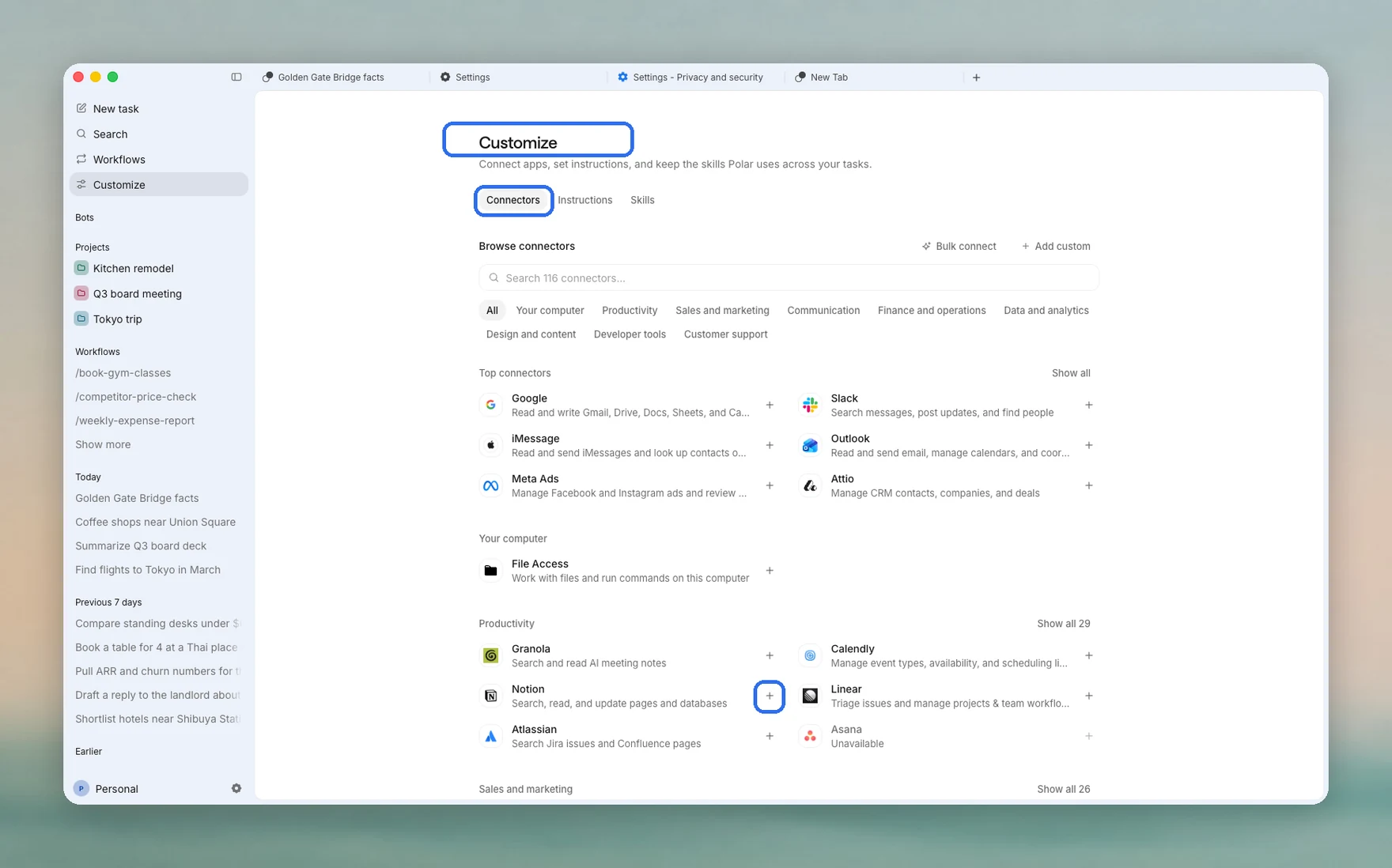
The app moves to Your connectors. Built-in connectors include Google (Gmail, Drive, Docs, Sheets, and Calendar), Slack, Notion, GitHub, Linear, and HubSpot.
If a task needs an app you haven't connected, Polar shows a Connect card in the chat. Sign in, and Polar picks up where it left off.
Connect several apps at once
On Customize → Connectors, click Bulk connect, pick your apps, and click Continue, then Go. Polar starts a task that signs in to each app with the accounts you're already signed in to. It only asks you when it needs you, like for a 2FA code.
Add another account
Some connectors, like Google, can hold more than one account. In Your connectors, click the account icons next to the app, then click Connect another account. You can remove an account from the same list.
Add a custom connector
If a service has a remote MCP server, you can connect it yourself.
- Under Browse connectors, click Add custom.
- Enter a Name and the Remote MCP server URL.
- Click Continue.
Polar checks the server, lists the tools it found, and asks you to sign in if the server needs it. If the provider gave you your own OAuth app, open Advanced settings to add the OAuth Client ID, OAuth Client Secret, and any extra authorization parameters.
Let Polar use files on your computer
The File Access connector lets Polar find and work with files and run commands on your Mac or Windows PC. Find it under Your computer in Browse connectors, then click Connect.
Once it's on, Polar can work with your files and run commands while it does a task. Your computer may ask once before Polar opens Desktop, Documents, or Downloads. File Access works while Polar is open on that computer.
On a Mac, the iMessage connector lets Polar read and send iMessages and look up your contacts.
Fix, pause, or remove a connector
- Needs reconnect means the app's sign-in stopped working. Click Reconnect and sign in again.
- Disable stops Polar from using a connector but keeps it set up. Click Enable to turn it back on.
- To disconnect an app, click the trash icon (Remove connector) next to it.
Can workflows use my connected apps?
Yes. A workflow's runs use your connectors like any other task. A workflow can also start when something happens in a connected app, like a new email in Gmail or a message in Slack. See Automate with workflows.