Run tasks
Start a task, pick how hard Polar works on it, add to it while it runs, stop it, and answer its questions.
A task is anything you ask Polar to do, from a quick lookup to hours of work across your sites. Polar works in your browser, signed in as you, and lets you know when it needs you.
Start a task
Click New task in the sidebar, describe what you want, and press Enter. Polar starts right away and shows its progress in the chat.
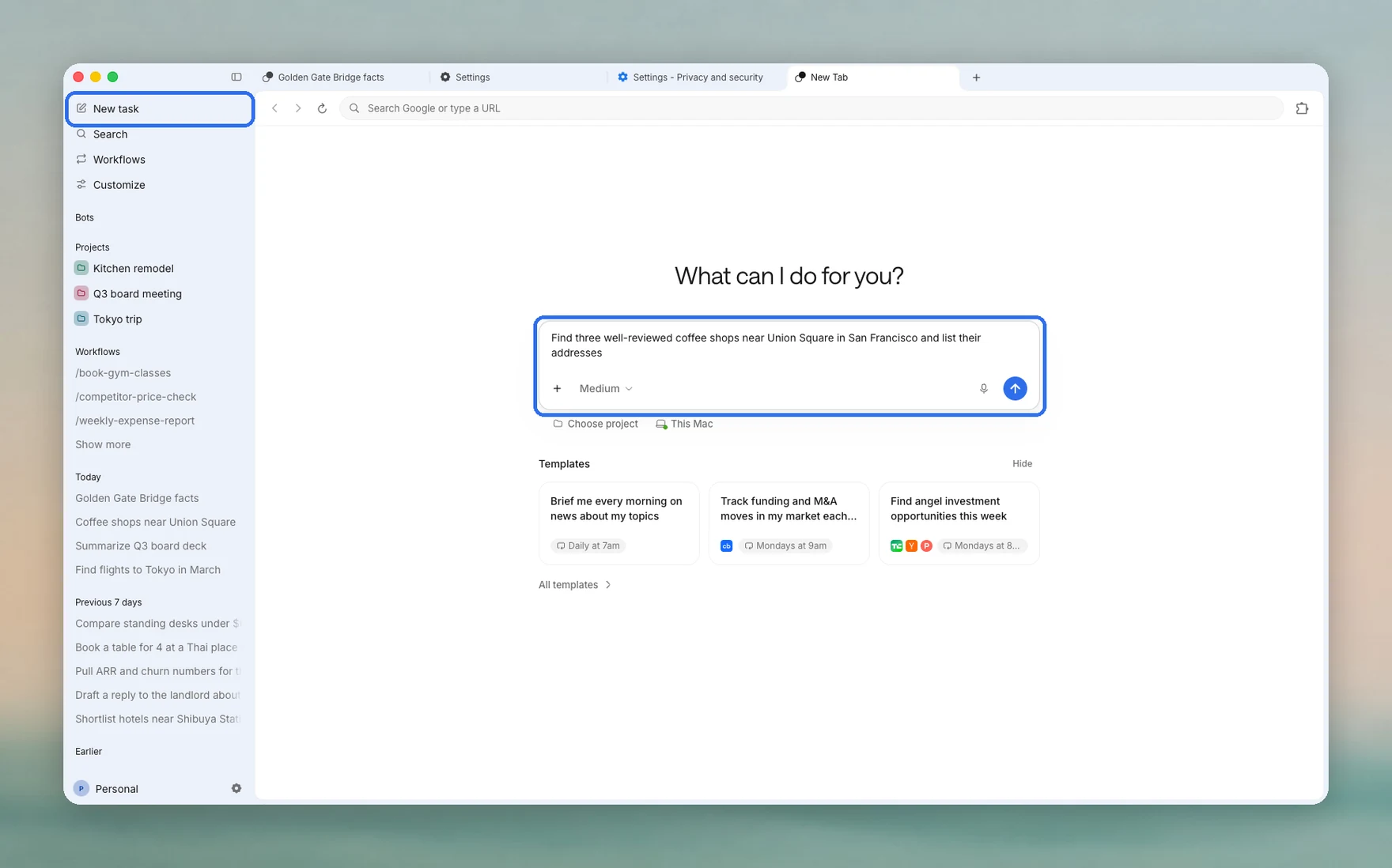
In the message box, type @ to point Polar at an open tab, type / to run one of your skills, or click + to add files or photos.
You can run several tasks at once. Set how many run together in Settings → Agent → Parallel tasks.
Choose the effort level
The effort level sets how hard Polar works. Click the level shown in the message box, like Medium, and move the slider.
| Level | Use it for |
|---|---|
| Low | Quick tasks. Uses the fewest credits. |
| Medium | Everyday tasks. The default. |
| High | Complex tasks. Uses more credits. |
| Extra High | The hardest tasks. Uses the most credits. |
Changing the level in a task applies to what Polar does next. See Manage plans and credits.
Add to a task while Polar works
You can keep typing while a task runs. When you press Enter, your message does one of two things:
- Do it next: Polar finishes the task, then works on your message. This is the default.
- Send now: Polar reads your message after its current step, without stopping.
Choose what Enter does in Settings → Agent → While Polar works. Press ⌘Enter on Mac or Ctrl+Enter on Windows to do the other one.
Waiting messages show above the box under Up next, where you can edit, delete, or send each one now.
Stop a task
Click Stop, the square button that replaces send while Polar works.
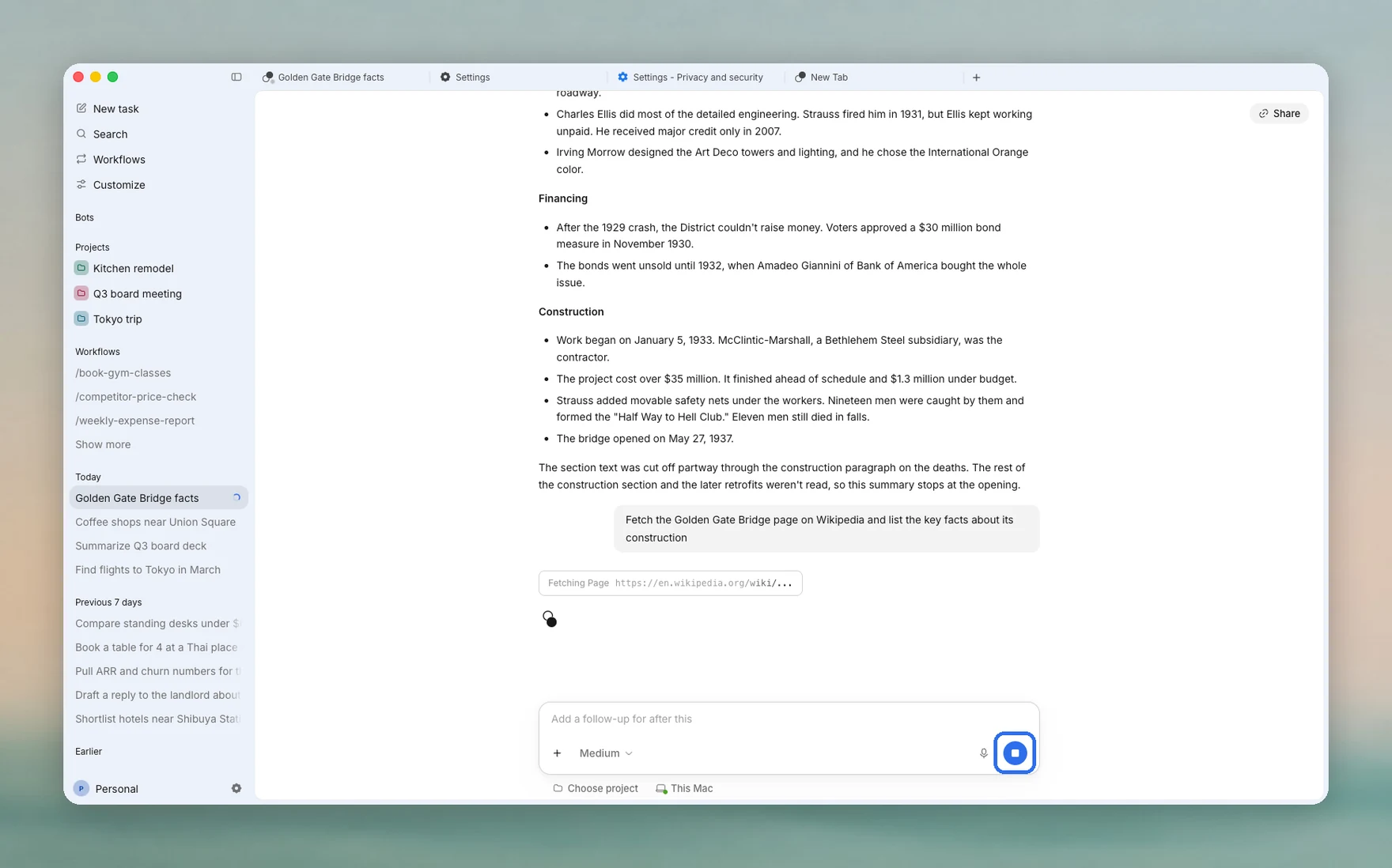
If you stop right after sending, before Polar does anything, your message goes back in the box with its attachments.
Answer Polar's questions
Polar asks on a card in the chat and sends you a desktop notification. Pick an option or write your own answer, then click Submit. You can also type a reply in the message box.
If a card needs you to do something in the browser, like sign in, click Open browser, finish the step, then click Done.
Tasks waiting on you also show under Needs input on New task, so you can answer there.
Write a good task
Say what you want and what done looks like. Polar fills small gaps with its best guess and tells you what it assumed. It only asks up front when your request could mean very different things.
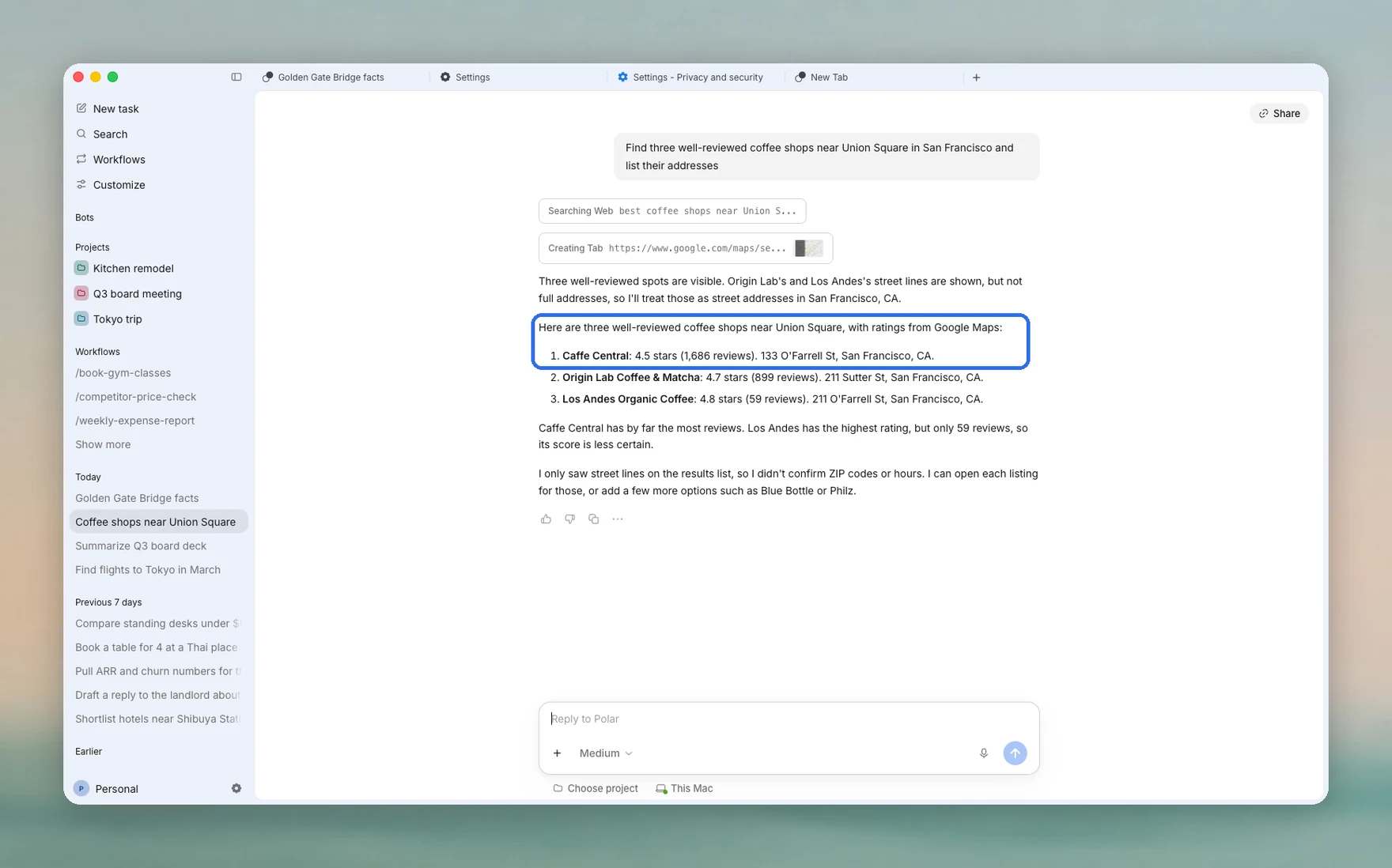
- Describe the result. "List the founders of 20 seed-stage climate startups in Berlin in a spreadsheet" works better than "research climate startups."
- Name the site or app. If the site is open in a tab, or you say "go to Gmail," Polar uses the browser. Otherwise it may use a connected app.
- Spell out lists. "For each listing in this tab" tells Polar to work through every item.
- Say what you want back. Bigger results come back as a file. Say "just tell me in chat" for a short answer.
- Point to past work. "Same as last time" works. Polar can look through your earlier chats.
Why did my task stop?
The chat shows a notice that says what happened:
- Task interrupted: click Continue to pick up where it left off. If you ran out of credits, you can continue once you have more.
- The agent hit an error: click Try again. Your progress is saved.
- Waiting for a computer: the task's computer is offline. It picks back up when Polar is open there, or you can stop it or move it.
Polar sends a notification when a task finishes. To turn these off, turn off Agent completion in Settings → Agent. See Use Polar on multiple devices.