Import from another browser
Bring your sign-ins, bookmarks, history, extensions, and open tabs into Polar from Chrome, Safari, Edge, Arc, and other browsers.
Polar can bring your data over from the browser you use now, so your sites open signed in and your bookmarks are where you expect them. You can import during setup or any time later from Settings.
Which browsers can I import from?
Polar lists only the browsers it finds on your computer.
| Browser | Mac | Windows |
|---|---|---|
| Google Chrome, Chrome Beta, Chrome Canary | Yes | Yes |
| Microsoft Edge | Yes | Yes |
| Brave | Yes | Yes |
| Arc | Yes | Yes |
| Dia | Yes | Yes |
| Comet | Yes | Yes |
| Vivaldi | Yes | Yes |
| Opera, Opera GX | Yes | Yes |
| ChatGPT Atlas | Yes | No |
| Aside | Yes | No |
| Safari | Yes | No |
Polar can't import from Firefox.
What can I bring over?
It depends on the browser and your computer. "Other browsers" means every browser in the list above except Safari.
| Data | Other browsers on Mac | Other browsers on Windows | Safari |
|---|---|---|---|
| Cookies & Site Data (your sign-ins) | Yes | No | No |
| Saved Passwords | Yes | No | No |
| Payment Methods | Yes | No | No |
| Bookmarks | Yes | Yes | Yes |
| Extensions | Yes | Yes | No |
| Browsing History | Yes | Yes | No |
| Open Tabs | Yes | Yes | No |
On Windows, you can still bring your passwords over from a file. See "Import passwords from a file" below.
Import during setup
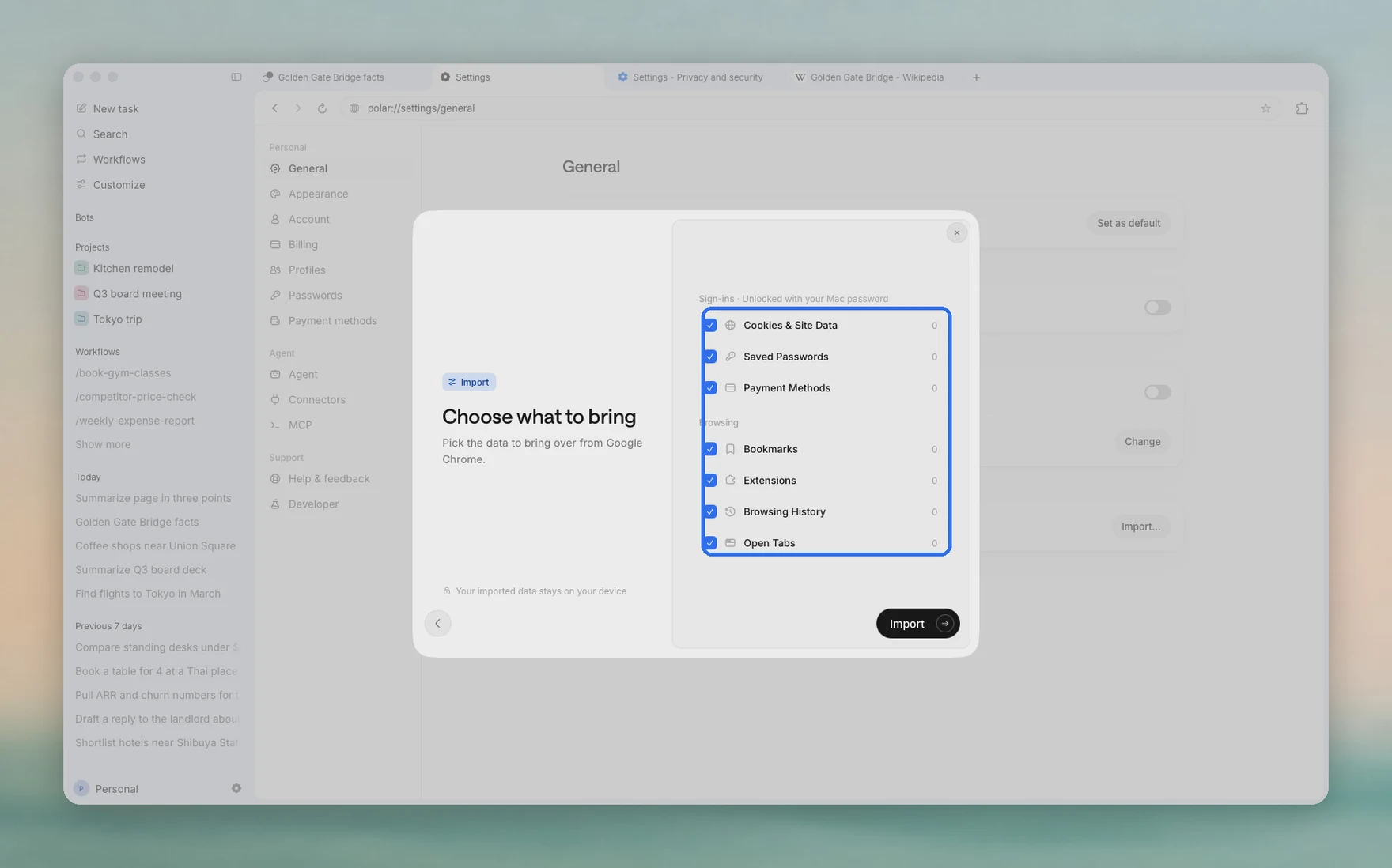
The Import Your Browser Securely step lists the browsers Polar found, with your default browser picked to start. If a browser has more than one profile, pick the one you want.
Click Import & Continue to bring everything over. Click Customize first to choose what comes over, or Skip to import later.
Import later from Settings
- Open Settings → General.
- Next to Import browsing data, click Import….
- Pick a browser and click Import. Click Customize first to choose what comes over.
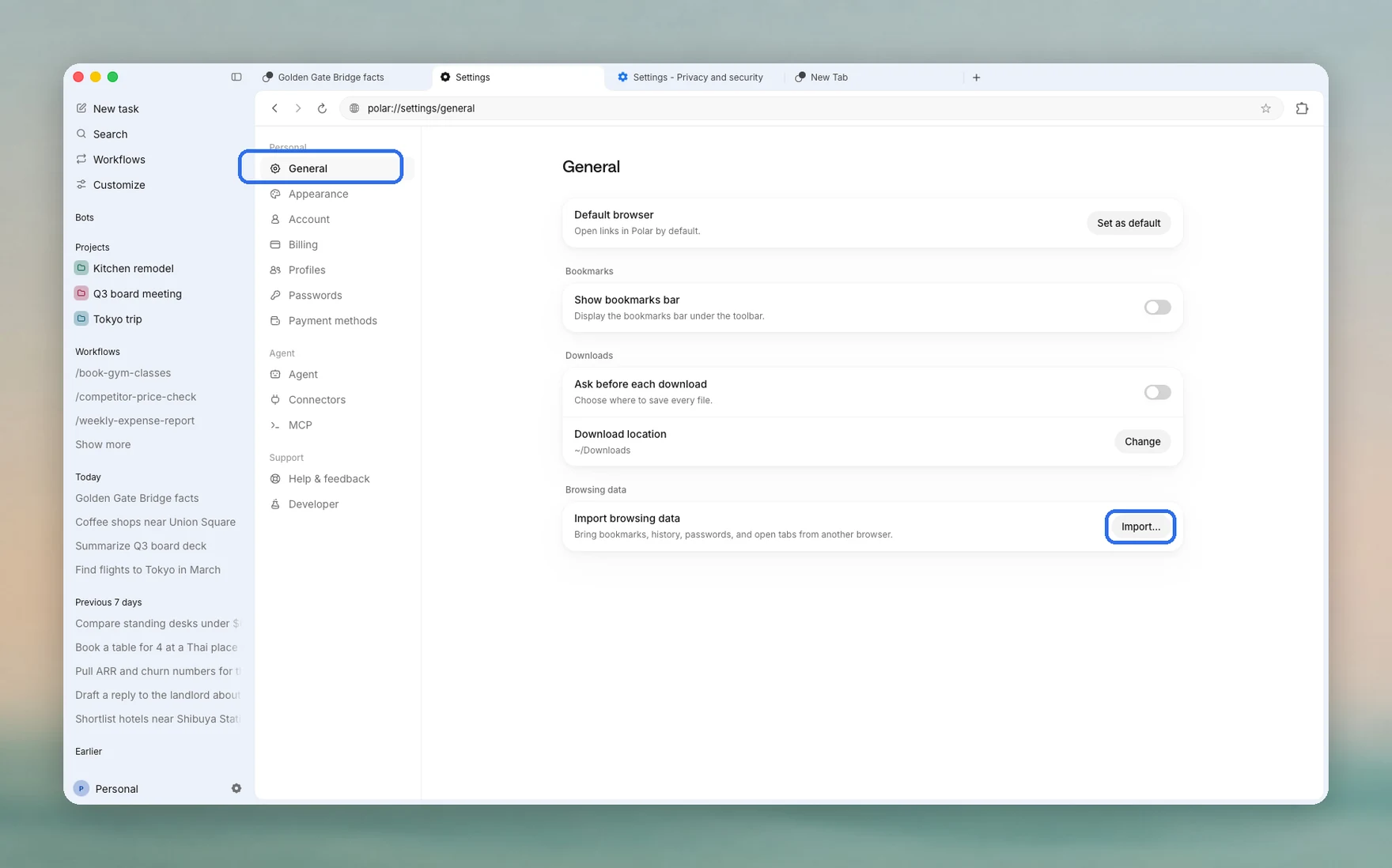
This imports into the profile of the window you're in. To import into a different profile, open Settings → Profiles, click ⋯ next to it, and choose Import. An import from Settings adds to what's already in the profile.
Why does my Mac ask for my password?
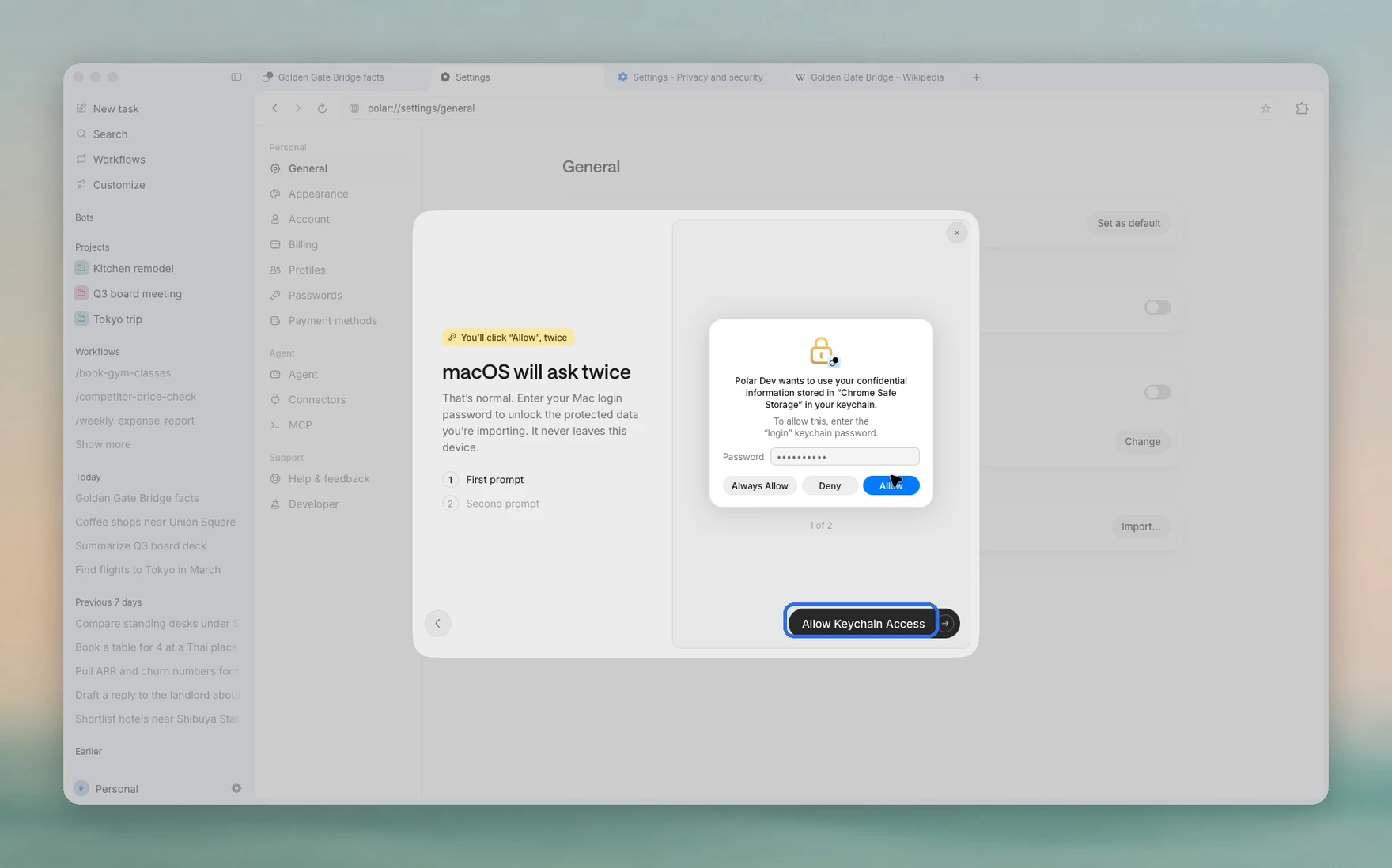
Your sign-ins, passwords, and payment methods are locked in your Mac's keychain. To bring them over, macOS asks for your Mac login password twice. Click Allow Keychain Access, then enter your password and click Allow in each prompt. Your password never leaves your Mac.
To import Safari bookmarks, macOS needs you to give Polar Full Disk Access. Click Open System Settings, turn on the switch for Polar, then come back and click I've granted access, continue. You can turn the permission off after the import.
What if the import fails?
Click Try again, or click Continue Anyway and import later from Settings. If macOS didn't let Polar unlock your protected data, everything else still comes over.
Import sign-ins when a task needs them
On a Mac, when a task stops at a sign-in page and you open its browser, Polar may offer to bring your sign-ins over from your other browser. Click Import sign-ins to choose what to bring, Not now to skip it this time, or Don't show again.
Import passwords from a file
Export your passwords as a CSV file from your other browser or password manager. Then open Settings → Passwords, click Import, and choose the file. See Manage sign-ins and passwords.