Use the Command panel
Open Polar beside the page you're on to ask about it or have Polar work on it, without leaving your tab.
The Command panel opens Polar next to the page you're on. Use it for help with what's in front of you, like summarizing an article, pulling numbers from a dashboard, or filling in a form.
Open the Command panel
Press ⌘K on Mac or Ctrl+K on Windows, or click Ask Polar at the right end of the toolbar. The panel opens on the right side of the window.
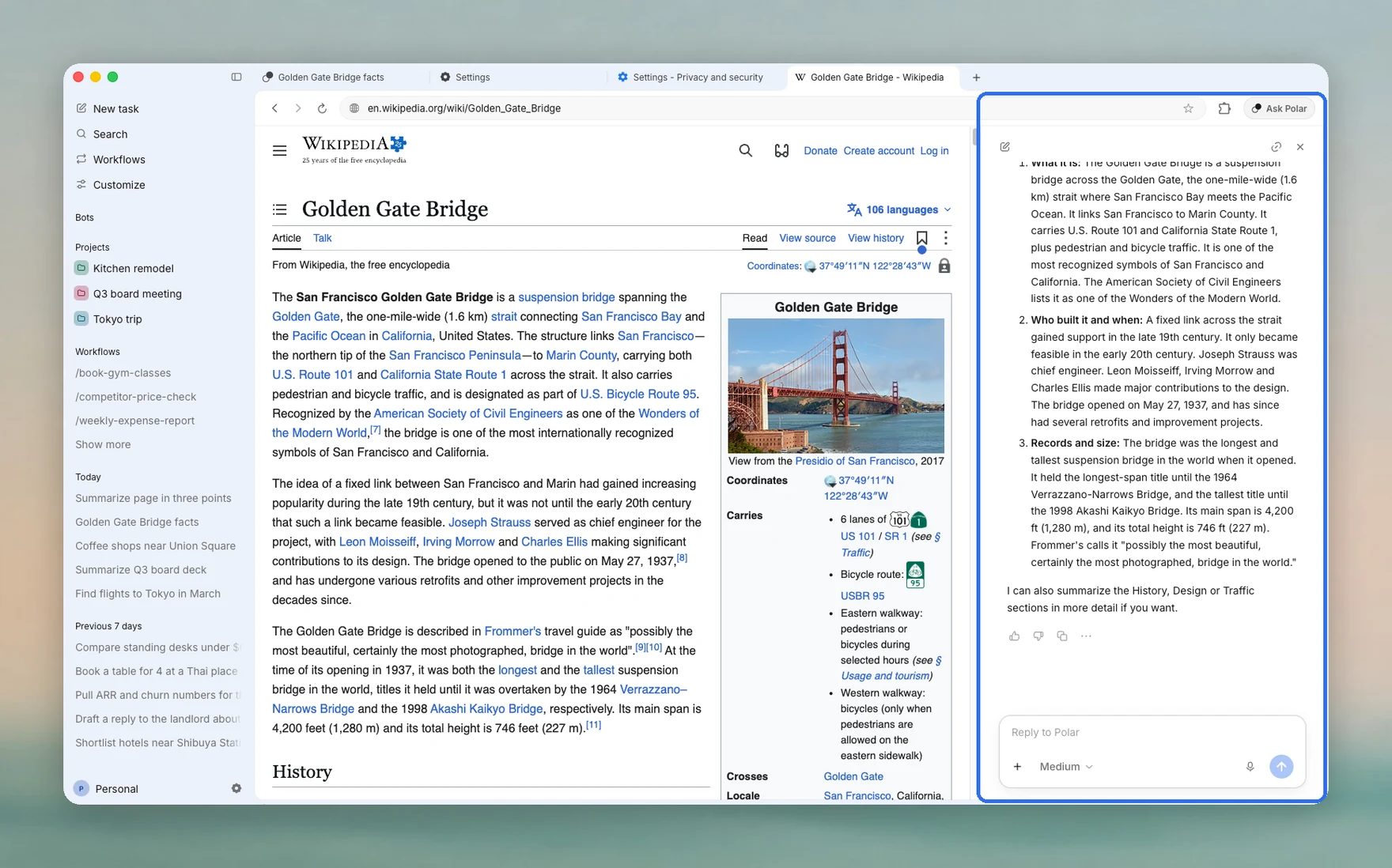
To close it, press the shortcut again or click ✕ at the top of the panel. The panel works on web pages, not on Polar's own pages like New task or Settings.
What can Polar see in the panel?
Polar sees the tab you opened the panel from, so you can ask about the page without copying anything. It can also work in that tab, like clicking through a site or filling in fields.
If you select text on the page before you open the panel, your message starts with that text. Add your question after it, like "Explain this" or "Turn this into a table."
Add other tabs, files, and skills
The panel's message box works like the one on New task:
- Type @ to add another open tab, for example to compare two pages.
- Type / to run one of your skills on the page.
- Click + to add files or photos.
You can also pick the effort level, add to a task while it runs, and stop it. See Run tasks for how those work.
Does the panel remember my chat?
Yes. Each tab keeps its own panel and its own chat. Switch to another tab and back, and the conversation is still there.
Tasks you start in the panel are saved with your other tasks, so you can find them later in the sidebar.
Start a new chat in the panel
Click New task, the compose button at the top left of the panel. It shows up once the panel has a conversation, and starts a fresh chat for the same tab.
Change the shortcut
Open Settings → Agent. Under Keyboard shortcuts, click the shortcut next to Command panel and press the keys you want. Click Reset to go back to ⌘K or Ctrl+K.
The new shortcut needs a modifier key: Command, Option, or Control on Mac, and Ctrl or Alt on Windows. It's saved for the profile you're using.