Manage memory and instructions
See and change what Polar remembers about you, your projects, your skills, and your past chats.
Polar remembers things between tasks so you don't have to repeat yourself. This page covers what it keeps, where you can see it, and how to change it.
Set your instructions
Open Customize in the sidebar and click the Instructions tab. Under How Polar should work, write anything Polar should know on every task: context about you, how you like things done, and what to avoid. Click Save.
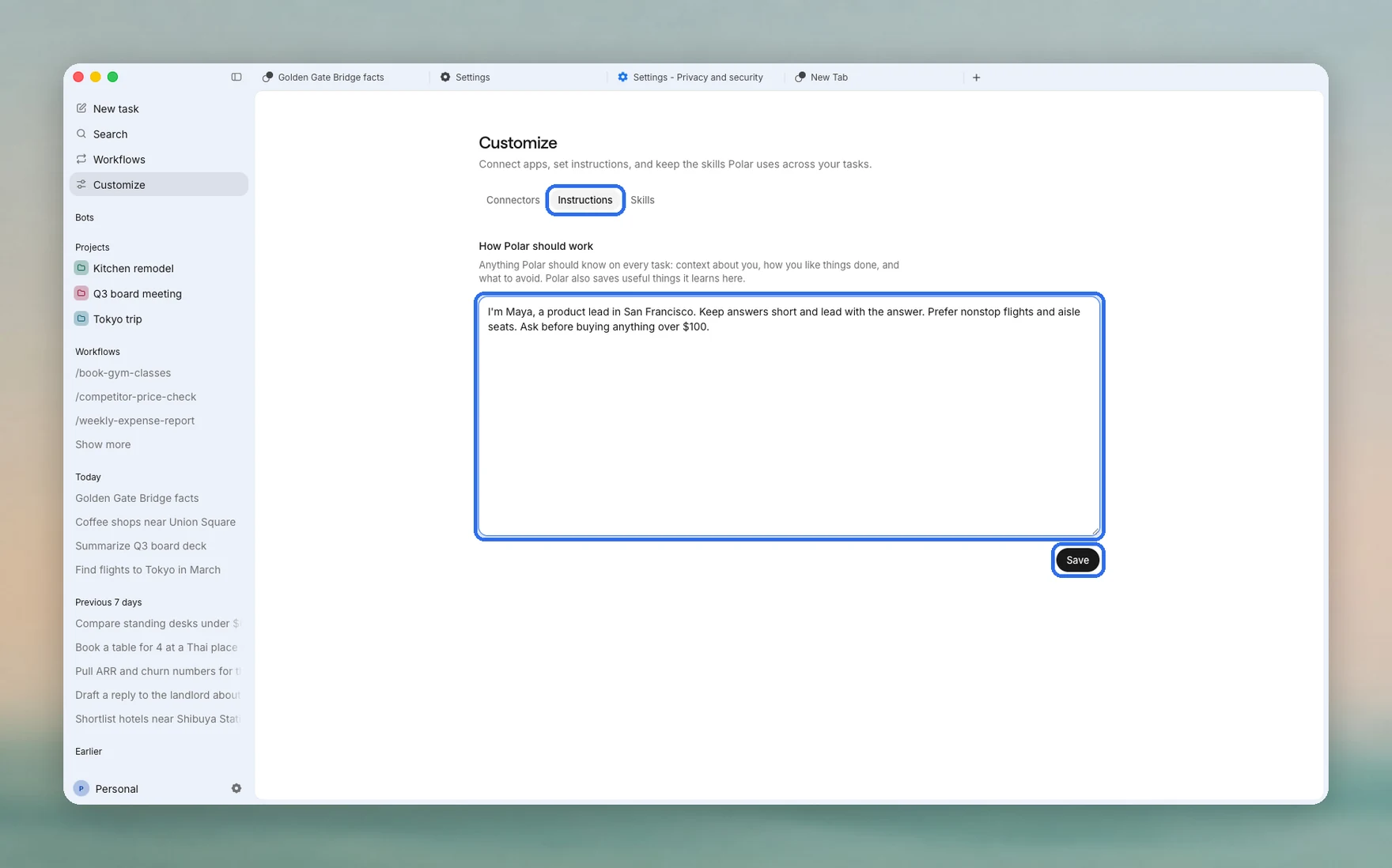
Polar reads your instructions at the start of every task, in every profile. If they get long, Polar suggests moving guidance for one kind of task into a skill, which it reads only when it's relevant.
Does Polar change my instructions?
Yes. Polar saves useful things it learns to your instructions, like a preference you mentioned in a chat. Open Customize → Instructions any time to read, edit, or delete what it saved.
Ask Polar to remember something
Say it in any chat, like "remember that I fly out of SFO." Polar saves it where it fits: your instructions for things about you, a project's memory for that project, or a skill's notes for that skill.
What does Polar remember about a project?
Each project has a Memory card with a short summary Polar keeps as it works: decisions, progress, and facts worth remembering. Polar reads it at the start of every task in the project. Only you can see it.
The card is read-only. To change or clear the memory, open the project's Context Files and edit or delete the file MEMORY.md. See Organize work with projects.
What does Polar remember about skills and workflows?
Polar keeps notes on each skill as it runs it, like corrections you gave it or where to find something.
- For a workflow, click Memories on its page to read them, or the trash icon next to it to clear them.
- For any skill, open its Files card. The notes are in MEMORY.md.
Notes on a team skill are shared with everyone on the team. When you share a skill by link, the copy leaves its notes out. Moving one of your skills to your team deletes your notes on it.
Can Polar see my past chats?
Yes. When you mention earlier work, like "same as last time," Polar can look through your past chats to find it. When it mentions an earlier chat, the chat's title is a link that opens it.
To keep a chat out of Polar's reach, delete it: right-click it in the sidebar and choose Delete. Polar can no longer search a deleted chat.
Related
Manage sign-ins and passwords
Save passwords and cards so Polar can sign in and check out for you, and see what happens when a site asks for a code.
Manage privacy and your data
See what Polar keeps on your computer, what it sends to its servers, and how to delete tasks, browsing data, or your account.